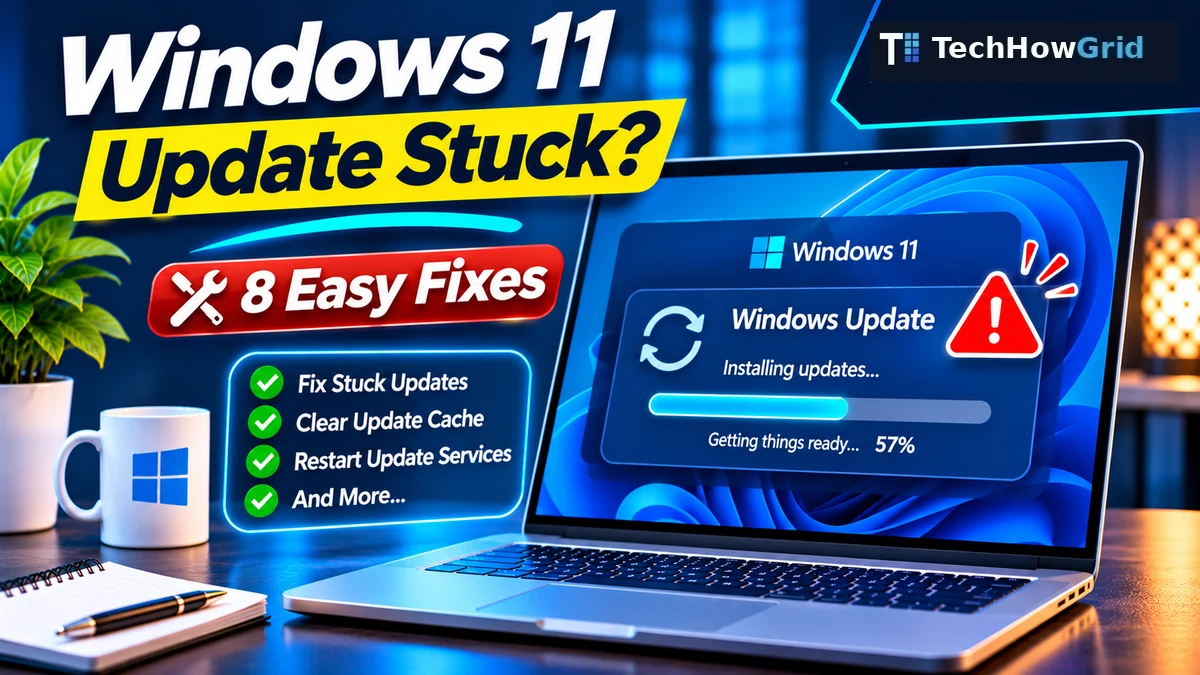
If your Windows 11 update is stuck at 0%, 99% or 100%, first identify whether Windows is downloading an update, installing it from the desktop, or applying changes during a restart. A progress indicator that remains unchanged for a while does not necessarily mean installation has failed. Keep the PC connected to power and avoid interrupting an active update.
This guide explains eight troubleshooting methods, starting with basic checks and ending with Windows repair options. You will learn what to do when an update is stuck on downloading, pending download, checking for updates or the restarting screen. The examples are illustrative; they are not screenshots from a tested installation.
In this guide
- Quick diagnosis
- 1. Check whether the update is really stuck
- 2. Check internet and power
- 3. Free up storage and restart normally
- 4. Run the Windows Update troubleshooter
- 5. Restart update services and clear the download cache
- 6. Repair Windows system files
- 7. Investigate the failed update
- 8. Use Windows repair or recovery options
- Practical example
- Frequently asked questions
- Related guides
Windows 11 update stuck: quick diagnosis
| Update status | What to check first |
|---|---|
| Downloading at 0% | Internet connection, update policy and download restrictions. |
| Downloading at a fixed percentage | Allow time, then check connectivity and update diagnostics if the desktop is responsive. |
| Installing at 99% or 100% | Allow installation to finish; the displayed percentage may not reflect every remaining operation. |
| Pending restart | Save your work and use the normal restart option when available. |
| Working on updates during restart | Keep power connected and avoid forcing the computer off while changes are being applied. |
| Repeated error or rollback | Record the KB number and error code; investigate that particular update. |
Before making substantial changes, back up important data. If device encryption or BitLocker is enabled, confirm that you can obtain your recovery key through an authorized account or administrator. On a managed computer, contact IT before changing update services, policies or recovery settings.
1. Check whether the Windows 11 update is really stuck
Windows Update may download files, verify packages, prepare components, install them and perform additional work after a restart. These stages have different progress indicators. A small cumulative update and a major feature upgrade do not take the same amount of time.
If you can still access the desktop, open Settings and select Windows Update. Note the status, update name and any error code. Check whether the status changes over time. Task Manager may also show disk or network activity, although low activity alone does not prove that Windows has stopped working.
If the computer is already on a full-screen update message during a restart, the desktop troubleshooting steps below do not apply until it becomes accessible again. Leave the device connected to reliable power. There is no universal safe time limit for forcing a shutdown. If the screen remains frozen for an unusually long time and you suspect a failure, seek device-specific recovery guidance rather than repeatedly cutting power.
2. Check your internet connection and power supply
- Connect a laptop to its charger before continuing.
- If the desktop is available, open a familiar website to check internet access.
- Prefer a reliable connection rather than a weak hotspot for a large update.
- Review whether the network is metered or has download restrictions.
- Check whether Windows Update is paused or managed by your organization.
Do not bypass an employer’s update controls or disable required security software to make an update download. If the PC cannot access the internet, use our Wi-Fi connected but no internet guide to diagnose the connection before investigating Windows servicing.
3. Free up storage and restart normally
Insufficient free storage can prevent an update from downloading or preparing its installation. The amount required depends on the package, the Windows version and the existing installation.
- Open Settings, then System, then Storage.
- Review available space on the Windows drive.
- Use the built-in storage cleanup options to remove files you no longer need, after inspecting the selections.
- Move or back up large personal files if appropriate.
- If Windows is responsive and no active installation must be interrupted, save your work and restart normally.
Be careful with cleanup options that remove previous Windows installations or recovery files. Removing those files may limit your ability to roll back an upgrade. Do not manually delete folders inside the Windows directory to free storage.
If storage usage appears abnormal, check which applications or files occupy space. Our 100% disk usage troubleshooting guide explains the separate issue of high disk activity, which should not be confused with a full drive.
4. Run the Windows Update troubleshooter
Microsoft provides a Windows Update diagnostic workflow through the Get Help app. On many Windows 11 installations you can also reach the relevant troubleshooting option through Settings. Use the available route for your version.
- Open the Get Help app and search for Windows Update problems.
- Alternatively, open Settings and navigate to System, Troubleshoot, then Other troubleshooters.
- Choose the Windows Update troubleshooting option if listed.
- Follow the prompts and review the issues detected.
- Restart normally if instructed, then retry the update.
Read the official Windows Update troubleshooter guide for Microsoft’s current instructions. If diagnostics cannot fix the issue, write down the reported error instead of running the same tool repeatedly.
5. Restart update services and clear the Windows Update download cache
A failed or incomplete download may leave temporary update files that prevent a clean retry. Consider this step only after basic troubleshooting, while the Windows desktop is available and no update is actively installing. You need administrator permission. Follow your organization’s IT policy on managed devices.
Microsoft includes cache and service troubleshooting in its Windows update problem guide. One conservative approach is to stop the relevant services, clear the contents of the download cache, and start the services again. This is not the same as uninstalling an installed update.
- Open Command Prompt as administrator.
- Run the following two commands individually and confirm that the relevant services have stopped. If a service cannot stop, do not force it or proceed with deleting files.
net stop wuauserv
net stop bits
In File Explorer, open the SoftwareDistribution download subfolder in your Windows directory, normally C:\Windows\SoftwareDistribution\Download. Remove only the temporary contents of that Download folder. Do not delete other Windows system files. If files are in use, stop and seek assistance.
Restart the services you stopped using the following commands:
net start bits
net start wuauserv
Return to Windows Update and check again. Windows may need to download packages again. If a command fails, record its message rather than trying random service modifications or third-party update-reset scripts.
6. Repair corrupted Windows system files using DISM and SFC
When installation repeatedly fails, Windows component or system-file damage may be involved. Microsoft documents the use of Deployment Image Servicing and Management (DISM) followed by System File Checker (SFC). These built-in tools require administrator access.
Open an elevated Command Prompt and run:
DISM /Online /Cleanup-Image /RestoreHealthAllow DISM to complete. It can require access to a valid repair source, often through Windows Update. After a successful repair, run:
sfc /scannowAllow the scan to finish, review the results and restart normally. If DISM cannot find a repair source or SFC reports files it cannot fix, do not assume the repair has succeeded. Consult the official Windows Update troubleshooting documentation for further diagnosis.
7. Investigate the specific Windows update or error code
If one update continues to fail, identify it before making larger system changes. Open Settings, select Windows Update and review Update history. Record the update’s KB identifier, Windows version, architecture and any error code. Use the About page under System settings to verify the device’s specifications.
| Example error code | Possible area to investigate |
|---|---|
| 0x80070070 | Available disk space. |
| 0x80070005 | Access or permission problems. |
| 0x8007000d | Invalid or damaged update data. |
| 0x80240034 | An update download or installation that could not complete. |
An error code is a diagnostic clue, not proof of a single cause. Check Microsoft’s upgrade and installation error guide and the Windows release health dashboard for your particular Windows release. Known compatibility problems sometimes require a vendor fix rather than changes to your computer.
For applicable standalone packages, the Microsoft Update Catalog offers official downloads. Use this route only if you can identify the exact compatible package and its prerequisites. Do not install a package intended for another Windows release or processor architecture, and do not attempt to bypass a compatibility safeguard.
8. Repair Windows without immediately resetting the PC
If normal troubleshooting fails but Windows still starts, a supported repair reinstall may be a better next step than a full reset. On eligible Windows 11 systems, Settings, System, Recovery may include an option called Fix problems using Windows Update with a Reinstall now button.
Microsoft describes this option as reinstalling the current Windows version while preserving apps, files and settings. It is not available on every system and requires connectivity. Back up your files anyway, verify your recovery key if applicable and follow the on-screen instructions. See Microsoft’s repair reinstall guide.
What if Windows 11 is stuck on the restarting screen?
When Windows cannot reach the desktop, use the recovery environment if it becomes available or follow the device manufacturer’s recovery guidance. Depending on the symptoms, supported options include Startup Repair, uninstalling a recently installed update or System Restore. Not all options are available on every computer, and some require the BitLocker recovery key.
Read Microsoft’s Windows recovery options guide before selecting a recovery action. Resetting or clean-installing Windows can remove applications, settings or data, depending on the option chosen. Treat those steps as a last resort after securing important files.
Practical example: Windows 11 update stuck at 0%
Imagine that a monthly update remains at downloading 0% while the desktop is fully responsive. First confirm that the PC is plugged in, websites load normally and Windows Update is not paused. Note the update name and check available space. Next, run the Windows Update troubleshooter and retry. If it repeatedly fails with a download-related error, consider the documented cache repair or contact IT.
Now imagine that the same PC has already restarted and shows a full-screen installation message at 99%. The correct approach is different: keep power connected, allow the active installation to finish, and do not apply desktop service or cache instructions while Windows is updating. If Windows eventually reports failure or becomes unbootable, use the appropriate official recovery guidance.
Frequently asked questions
Why is my Windows 11 update stuck at 100%?
Windows may still be verifying or finalizing update components. The percentage alone does not establish whether the process has failed. Look for an error or status change, and do not interrupt an active installation.
Can I restart if Windows Update is stuck downloading?
If the desktop is responsive and the update is only downloading, a normal restart may be appropriate after saving your work. That is different from forcing a shutdown while Windows is applying updates during startup or restart.
Will clearing the download cache uninstall updates?
Clearing only temporary downloaded files does not normally uninstall completed updates. Windows may download pending packages again. Avoid modifying unrelated servicing folders.
Does DISM or SFC delete personal files?
The repair commands shown here are intended to repair Windows components and protected system files, not remove personal documents. A current backup remains advisable before system repair.
Should I permanently disable Windows Update?
No. Updates help maintain security and stability. Resolve the underlying failure, use supported update scheduling controls and follow your organization’s policies.
Related TechHowGrid guides
- Speed up Windows 11 without extra software
- Fix 100% disk usage in Windows 11
- Fix DNS server not responding
- Fix Wi-Fi that keeps disconnecting
- Recover deleted files in Windows 11
The key is to identify the update stage before attempting a fix. Start with power, connectivity, storage and Microsoft’s diagnostics. Use advanced repair steps only when justified, and preserve your data before choosing recovery or reinstallation.