
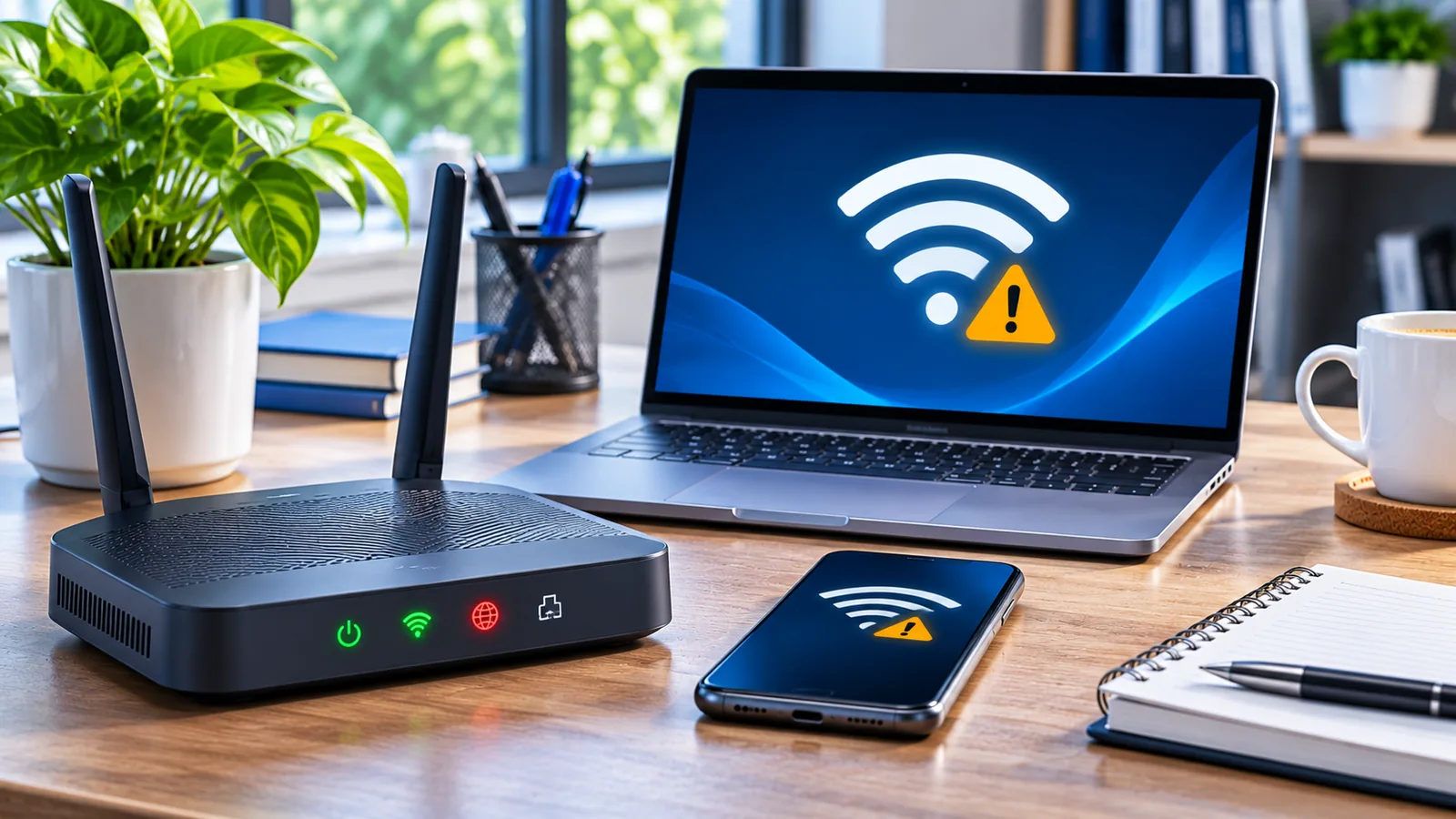
If your Wi-Fi is connected but you have no internet, first test another device on the same network. If all devices fail, investigate the router, modem, or internet provider. If only one device fails, start with its connection settings rather than resetting the router.
A Wi-Fi connection only means your device has joined a wireless network. Internet access also requires working network settings, a route outside the local network, and usually a functioning DNS service. This guide helps you isolate the fault without making unnecessary changes.
In this guide
- Start here: identify where the connection fails
- 1. Reconnect the device and restart the network equipment
- 2. Check for a public Wi-Fi sign-in page
- 3. Diagnose Wi-Fi connected but no internet on Windows 11
- 4. Fix the same problem on a Mac, Android, or iPhone
- 5. Check DNS and router internet status
- 6. Know when to reset network settings or contact support
- Frequently asked questions
- Related guides
Start here: identify where the connection fails
- One website or app fails: try several unrelated websites and another app before changing network settings.
- Only one device fails: try reconnecting that device and check whether it works on another trusted network.
- Every device fails: inspect your router and modem, then check for an internet provider outage.
- Public Wi-Fi: look for the network sign-in page. Some networks require you to accept terms before accessing the internet.
- Wi-Fi icon says no internet but websites load: the operating system’s connectivity check may be blocked. Confirm actual connectivity before troubleshooting.
For example, if your phone and laptop both fail to load unrelated websites on the same Wi-Fi, but the phone works on mobile data, the home network or its internet connection deserves attention first. Turn mobile data off temporarily when testing the phone on Wi-Fi so it does not mask the problem.
1. Reconnect the device and restart the network equipment
Try low-risk fixes before editing network settings. Disconnect from Wi-Fi, reconnect, and restart the affected device. If the problem affects the whole network, restart the router and modem if you are authorized to manage them.
- Save work and tell anyone relying on the connection that it may be interrupted.
- If the router and modem are separate devices, switch them off and follow your internet provider’s recommended restart order. Typically the modem comes online first, followed by the router.
- Wait until the connection lights settle. Router light meanings vary, so consult the model’s manual.
- Reconnect your device and try a few websites.
Do not press the recessed Reset button. A factory reset can erase Wi-Fi credentials, internet-provider settings, address reservations, and other configuration. An ordinary power restart does not intentionally erase these settings.
2. Check for a public Wi-Fi sign-in page
Hotels, airports, and cafés may use a captive portal. Your device can join the wireless network but cannot reach the internet until the portal is completed.
- Open the Wi-Fi network details and check for a sign-in notification.
- If appropriate, open a non-sensitive HTTP page in a browser to trigger the sign-in page.
- Verify the network name and portal with the venue before entering any information.
- After signing in, open a normal HTTPS website to confirm access.
Never ignore unexpected certificate warnings or provide your private credentials to an unfamiliar portal. On a managed network, ask the administrator for the correct connection procedure.
3. Diagnose Wi-Fi connected but no internet on Windows 11
Open Command Prompt and inspect the Wi-Fi adapter’s configuration. These initial commands are read-only.
ipconfig
ping 192.168.1.1
nslookup example.com
Replace 192.168.1.1 with the Default Gateway listed under your active Wi-Fi adapter. It is an example, not a universal router address. The gateway test checks whether a local network device responds; the DNS lookup checks whether a hostname can be resolved.
- IPv4 starts with 169.254: the device may have failed to obtain an address through DHCP.
- No usable default gateway: inspect automatic IP assignment or ask the network administrator.
- Gateway responds but DNS lookup fails: a DNS or upstream network issue is possible.
- Gateway ping fails: the router may be unreachable or may block ping; do not treat this result as conclusive.
If your home network uses automatic IP assignment, open Command Prompt as administrator and try renewing the IP address. This can temporarily interrupt active connections.
ipconfig /release
ipconfig /renew
ipconfig /flushdns
The first two commands discard and request an IPv4 lease; the last clears cached DNS results. They will not repair an internet provider outage. Avoid releasing the address during a remote support session or on a managed computer without permission.
You can also run the Windows network troubleshooter using Get Help, review the Wi-Fi adapter settings, and check whether an unintended proxy or VPN is preventing access. Keep required workplace security controls in place. See Microsoft’s Wi-Fi troubleshooting documentation.
4. Fix the same problem on a Mac, Android, or iPhone
macOS
Reconnect to the Wi-Fi network and restart the Mac if necessary. If an automatically assigned address appears invalid, go to System Settings, open Network, select Wi-Fi and its network details, then inspect TCP/IP settings. On supported macOS versions you can renew the DHCP lease. See Apple’s Mac Wi-Fi troubleshooting guide for the procedure and version-specific guidance.
Android
Toggle Wi-Fi off and back on, and restart the device. Temporarily switch off mobile data for an accurate Wi-Fi-only test. If you know the Wi-Fi password, forgetting and rejoining the network can clear an incorrect saved configuration. Menu names vary among Android manufacturers. Check Google’s Android connection help.
iPhone or iPad
Confirm Wi-Fi is enabled, reconnect to the intended network, and restart the device. If you can re-enter the password, forgetting and rejoining the network is another option. Network settings resets are more disruptive because saved networks and other connection settings may be removed, so reserve them for later troubleshooting.
5. Check DNS and router internet status
DNS is the service that translates website names into addresses. A device may reach the network but fail to open websites when its configured DNS service is unavailable. A failed lookup alone cannot prove that the DNS server is the root cause, because an upstream connection failure can cause the same result.
On Windows, compare a lookup using your current resolver with a lookup using an approved alternative if your network policy allows it. A public DNS provider is not always appropriate for business networks, parental controls, private domains, or filtered networks. Record existing settings and restore them if a change does not help.
nslookup example.com
nslookup example.com 1.1.1.1
These commands query your configured resolver and an example public resolver, respectively. They do not modify DNS settings. If the second works but the first does not, investigate your normal resolver; a timeout can also result from a firewall or policy that blocks external DNS.
If every device fails, check the router’s internet or WAN status using its official management interface. A missing WAN address, a disconnected modem, or an outage may require your internet provider’s help. Do not change PPPoE credentials, VLAN settings, or other provider-specific configuration unless you know the required settings.
6. Know when to reset network settings or contact support
On Windows 11, the network reset option is available under Settings → Network & internet → Advanced network settings. Microsoft recommends reserving it for later troubleshooting because adapters are reinstalled and settings are reset. VPN software or virtual network adapters may need to be configured again.
Before contacting your provider, collect a few useful details: when the problem started, whether other devices are affected, the router’s internet status, whether a wired connection works, and which safe steps you already tried. Avoid sending Wi-Fi passwords or administrative credentials.
Frequently asked questions
Why does Wi-Fi show full signal but no internet?
Signal strength describes the local wireless connection, not the provider’s internet service. You can have excellent signal while the router’s upstream connection, DNS, or device settings are failing.
Will changing DNS fix the problem?
Only if DNS resolution is contributing to the problem. It cannot restore a disconnected modem, fix invalid Wi-Fi credentials, or repair an outage.
Why does my phone work but my laptop does not?
The laptop may have an incorrect IP configuration, proxy, VPN, driver issue, or another device-specific fault. Confirm that the phone is truly using Wi-Fi rather than mobile data, then investigate the laptop.
Can I still use my network printer without internet?
Often yes. Local devices may communicate even when the internet is unavailable, provided the network permits local connections. See our printer troubleshooting guides for more information.
For more practical connectivity tutorials, visit Networking & Wi-Fi.
Related guides
Editorial note: This guide is based on official vendor documentation and networking principles. Commands and IP addresses are illustrative; the troubleshooting procedures have not been tested on every listed device or router model.