
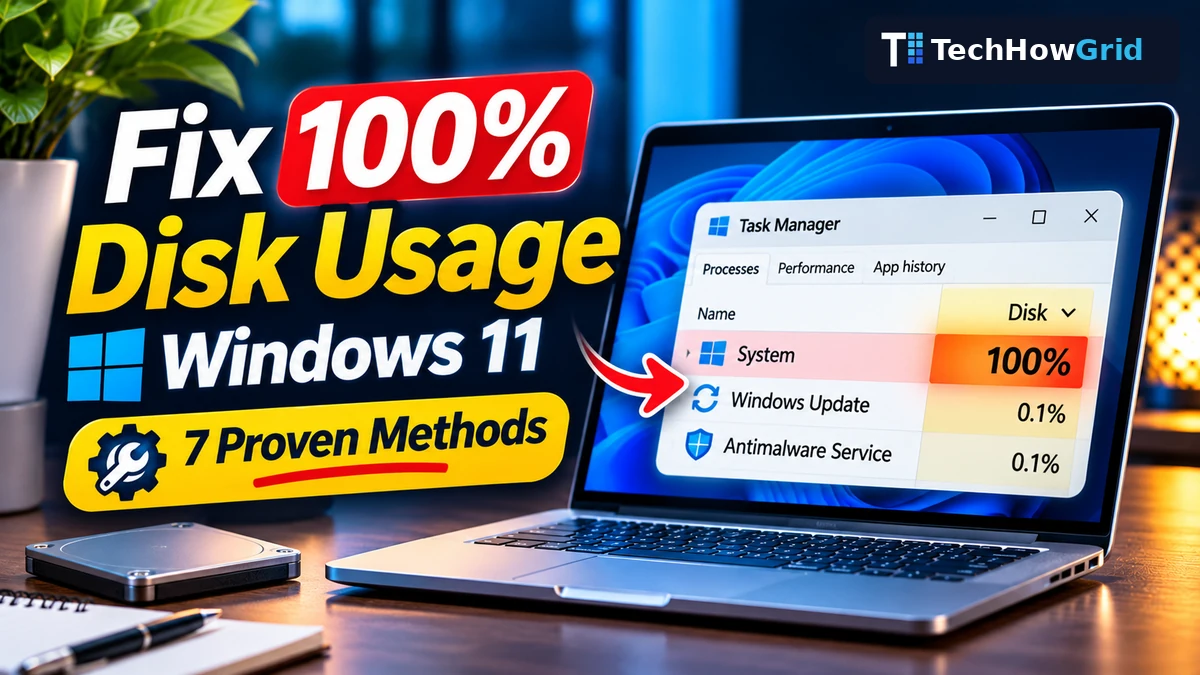
If you see 100% disk usage in Windows 11, begin by checking which processes are accessing your storage drive in Task Manager. A disk can be fully occupied even when it has plenty of free space. Sustained high disk activity may make applications slow to open, cause delays when switching windows, or make the computer feel unresponsive.
Short spikes while installing updates, scanning files or copying large folders are normal. The aim is to identify persistent activity that interferes with everyday work, not to force the disk percentage to zero. The following seven checks move from simple, reversible steps to storage diagnostics.
Before troubleshooting: If your drive makes unusual clicking noises, repeatedly disappears, reports a critical health warning or produces file-read errors, prioritize backing up important files. Avoid repeatedly scanning or stressing a potentially failing drive.
In this guide
- What does 100% disk usage mean?
- 1. Identify the process using your disk
- 2. Restart and finish pending updates
- 3. Reduce unnecessary startup activity
- 4. Free up storage space
- 5. Check for malware
- 6. Check memory pressure and paging
- 7. Check drive health and file system errors
- Frequently asked questions
- Related guides
What does 100% disk usage mean?
Task Manager’s disk percentage generally reflects how busy a drive is servicing requests, rather than how much of its storage capacity is occupied. A mechanical hard drive can reach 100% active time while transferring only a small amount of data because it must physically seek between many small files. An SSD can also become saturated or experience delays.
| What you observe | What to investigate first |
|---|---|
| High activity immediately after startup | Startup programs and background maintenance |
| High activity during downloads or file copies | Whether it settles when the transfer finishes |
| High disk activity and almost full memory | Memory pressure and paging |
| 100% active time with low transfer speed | Small random requests, latency or drive problems |
| Freezing with storage warnings or read errors | Backup and drive diagnostics |
These patterns are clues, not definitive diagnoses. Check the process, timing and drive health together.
1. Identify the process using your disk
- Press Ctrl + Shift + Esc to open Task Manager.
- Open Processes and select the Disk column to sort applications by current disk activity.
- Open Performance and select the affected disk. Note active time, read/write rates and average response time.
- Observe the system for a few minutes and record which processes remain near the top.
If Task Manager does not make the cause clear, press Windows + R, enter resmon and open the Disk tab in Resource Monitor. Disk Activity can help you identify the files and processes involved. For example, a cloud sync application may be transferring thousands of small files while a separate browser process appears busy only briefly.
Close known applications normally after saving your work. Do not end unfamiliar system processes or security services simply because they appear near the top. See Microsoft’s guide to Windows system configuration tools.
2. Restart and finish pending updates
A restart can clear a temporary application problem and complete updates that are waiting for a reboot. Save your work and select Restart from the Start menu’s power options.
After signing back in, open Settings → Windows Update. Check whether downloads, installation or a restart are pending. Allow legitimate update activity to complete, then observe disk usage again. Do not force a shutdown during an update.
If indexing or cloud sync is temporarily busy after a large file transfer, let it finish or use the application’s own pause control when appropriate. Resume syncing afterward. High disk activity that settles after maintenance is different from a problem that recurs during every session.
3. Reduce unnecessary startup activity
Applications that start automatically can compete for storage access as soon as you sign in. Reducing optional background work can help isolate the cause of slow startup.
- Open Settings → Apps → Startup, or Task Manager → Startup apps.
- Identify applications you recognize and do not need to launch automatically.
- Disable one or a small group of nonessential startup entries.
- Restart and compare disk activity under similar conditions.
Leave antivirus protection, required device utilities and workplace management software enabled. If disabling an entry does not help, restore it if you need its automatic functionality. Microsoft’s startup application documentation explains both supported controls.
4. Free up storage space
High disk active time is not the same as low free space. However, a nearly full system drive can make updates and temporary file operations more difficult. Check your C: drive in File Explorer under This PC.
- Open Settings → System → Storage.
- Review Temporary files or Cleanup recommendations.
- Select only categories you understand and no longer need.
- Move or back up large personal files if necessary, and consider configuring Storage Sense.
Review the Downloads and Recycle Bin options carefully before deleting anything. Cleanup can permanently remove data you intended to keep. Never delete random folders inside the Windows directory. Read Microsoft’s Storage Sense guide for cleanup options and their behavior.
5. Check for malware
Malware can generate unexpected storage activity, but high disk usage alone is not proof of infection. Open Windows Security → Virus & threat protection and run a Quick scan using your active security provider. Update protection definitions if needed.
If there are suspicious symptoms, use the security provider’s recommended deeper scan options. A scan itself may temporarily raise disk activity. Let it finish, address any detections and measure disk usage again afterward. If another antivirus product manages the device, follow that provider’s instructions instead of installing competing scanners.
6. Check memory pressure and paging
When available RAM is low, Windows may move memory data between RAM and the page file on storage. This can cause noticeable delays, particularly on a mechanical hard drive. Look at both Memory and Disk in Task Manager while reproducing the slowdown.
- Save your work and close applications and browser tabs you no longer need.
- Check whether memory usage falls and disk activity settles.
- If the issue returns with your normal workload, identify which applications need the most memory.
- Consider a compatible RAM upgrade if your workload regularly exceeds available memory and the device supports it.
Keep Windows’ paging file system-managed unless you have a specific, well-understood reason to change it. Disabling virtual memory is not a general solution and can make applications fail when memory runs out. Microsoft’s PC performance guidance covers additional system checks.
7. Check drive health and file system errors
If the problem continues even after ordinary background tasks finish, check the affected drive. In Settings → System → Storage → Advanced storage settings → Disks & volumes, select the drive’s Properties where available. Windows may show health information for supported devices; not every drive exposes the same information.
If you see a critical warning, back up accessible files promptly and arrange service. See Microsoft’s storage health warning guidance. Use the manufacturer’s supported diagnostics for your exact drive model, especially when Windows does not report its health.
For a healthy, backed-up drive with suspected NTFS file system errors, an administrator can use the following online scan. Confirm that C: is the intended NTFS volume before running it.
chkdsk C: /scanThis is a diagnostic scan, not a guaranteed performance fix. If it reports errors, review the output and back up your files before attempting repairs. Avoid running repair or intensive surface-scan options on a suspected failing drive. Microsoft’s CHKDSK command reference explains the available options.
If the drive is healthy but an older mechanical HDD consistently becomes a bottleneck, a compatible SSD may provide a meaningful responsiveness improvement. Check the computer’s storage interface, physical compatibility and backup or migration requirements before purchasing. If the system already uses an SSD, investigate drivers, firmware and workload before assuming that a faster drive will solve the problem.
Frequently asked questions
Is 100% disk usage the same as a full hard drive?
No. The disk activity indicator describes how busy the drive is, while free space describes the amount of storage capacity available.
Should I disable SysMain or Windows Search?
Not as a first step. Identify the actual source of sustained disk activity first. Disabling services without diagnosis may affect search, startup performance or other functionality.
Can an SSD have 100% disk usage?
Yes. SSDs can become busy during demanding workloads or encounter slow requests and hardware issues. Check latency, processes and device health.
Will reinstalling Windows fix high disk usage?
It may resolve some software problems, but it cannot repair failing storage or eliminate hardware limitations. Back up data and diagnose the cause before considering a reinstall.
Related guides
- Laptop plugged in but not charging: seven practical fixes
- Bluetooth not working in Windows 11
- How to recover an unsaved Word document
Explore more Windows and computer solutions on TechHowGrid.