
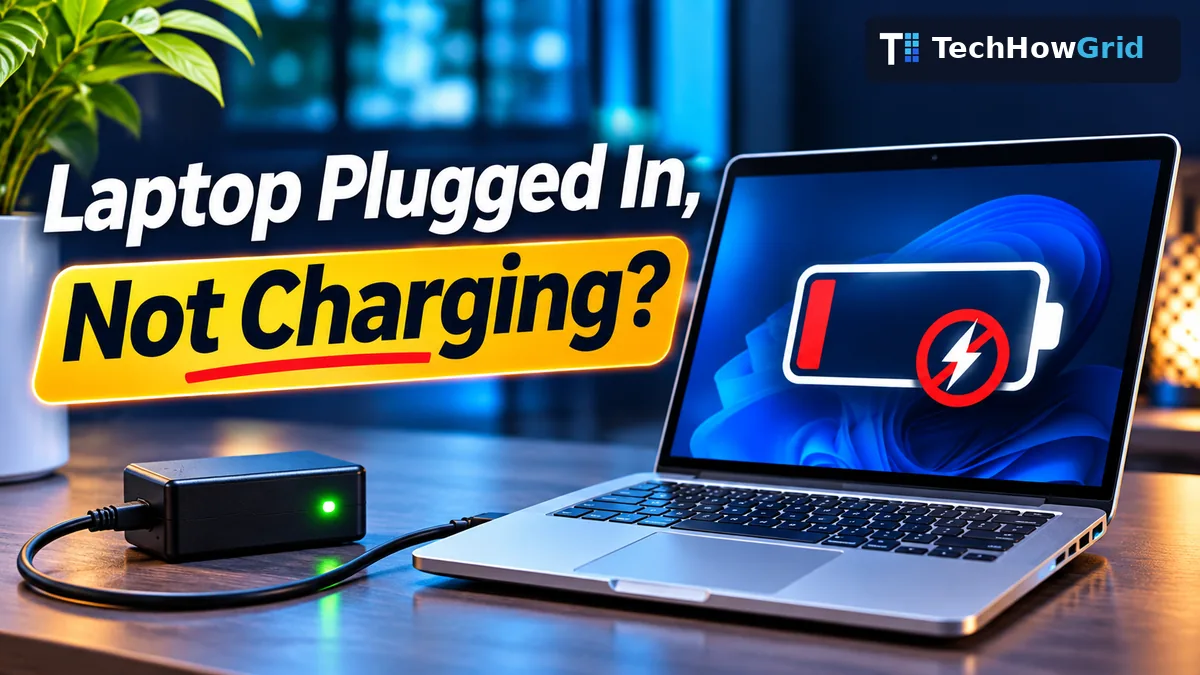
If your laptop is plugged in but not charging, the cause could be an underpowered charger, a loose connection, a battery protection setting or a failing battery. Start by checking whether the computer recognizes external power and whether the charge level is actually dropping. You may not need to replace anything.
Safety first: If the battery appears swollen, the casing is separating, or the charger produces smoke, a burning smell or unusual heat, stop using and charging the laptop. Disconnect power if it is safe to do so and arrange professional service. Never puncture a battery or open a power adapter.
In this guide
- Start with the symptom
- 1. Check the charger, cable and outlet
- 2. Verify USB-C charging and wattage
- 3. Check battery charging limits
- 4. Restart and test charging while shut down
- 5. Run a Windows battery report
- 6. Run manufacturer hardware diagnostics
- 7. Check updates and get the right repair
- Frequently asked questions
- Related guides
Start with the symptom
| What you notice | First thing to check |
|---|---|
| Battery stops at 60% or 80% | Battery health or charge limit setting |
| Battery percentage falls while plugged in | Charger output and power demand |
| Charges only when shut down | Charger capacity, temperature and workload |
| Charger connects and disconnects repeatedly | Cable, adapter and charging port condition |
| Laptop switches off when unplugged | Battery health and detection |
These symptoms suggest where to start; they are not a definitive diagnosis. Record the battery percentage and any warning from Windows before changing settings.
1. Check the charger, cable and outlet
- Save your work and connect the manufacturer-recommended charger directly to a working wall outlet.
- Check that the detachable power cord, adapter and laptop connector are firmly seated. Inspect them for visible damage while disconnected.
- If the adapter has an indicator light, check whether it behaves as described in your model’s manual.
- If available, test a known-working, manufacturer-approved compatible adapter. Do not force a connector or use a damaged cable.
An indicator light alone does not prove that an adapter can supply enough power. For barrel-style connectors, the voltage, polarity, connector and power rating must meet the laptop manufacturer’s specifications. See HP’s AC adapter troubleshooting guidance for an example of model-specific checks.
2. Verify USB-C charging and wattage
USB-C ports can look identical even when their capabilities differ. A phone charger or a monitor’s USB-C connection may deliver less power than your laptop needs.
- Confirm that the particular USB-C port supports charging input using the laptop manual.
- Use a USB Power Delivery charger and cable that meet the model’s required power profile and wattage.
- Disconnect docks and hubs and connect the approved charger directly to the laptop.
- Close demanding applications temporarily and observe whether the percentage increases.
For example, a computer that requires a 65 W USB-C charger may not charge reliably from a 20 W phone charger, particularly during heavy use. The precise requirements depend on the laptop. See Microsoft’s slow charging guidance and USB-C troubleshooting guide.
3. Check battery charging limits
A battery stopping at a predictable percentage may be working as intended. Some laptops use Smart charging, conservation mode or a custom charge threshold to reduce long periods at full charge.
- Look for a heart icon or Smart charging status near the Windows battery indicator.
- Open the laptop manufacturer’s installed power or battery management application, if available.
- Check the documented charging threshold or battery care setting for your exact model.
- If you need a full charge before travelling, use the manufacturer’s supported option to temporarily change the limit, then restore it if desired.
Windows does not offer a universal switch for every manufacturer’s charging feature. Microsoft’s Smart charging explanation describes this behavior.
4. Restart and test charging while shut down
Restart Windows with the compatible adapter connected. If charging still appears stalled, save your files, shut down the computer completely and allow it to charge for about 20 to 30 minutes, provided there are no signs of battery damage. Then start it and compare the battery percentage.
If the battery charges only while the laptop is off, the adapter may not be meeting the computer’s operating demand. Temperature or power-management behavior can also be involved. Let an excessively warm laptop cool on a hard, ventilated surface. Do not use a freezer or attempt to cool a battery with liquids.
Some manufacturers recommend a model-specific power reset. Follow the official procedure for your laptop rather than opening an internal battery compartment or disconnecting a built-in battery yourself.
5. Run a Windows battery report
Windows can generate a battery history report. It is useful for checking whether a battery has lost capacity over time, although it cannot determine every charging fault.
- Open Start, search for Command Prompt, and select Run as administrator if required.
- Enter the following command and press Enter.
powercfg /batteryreportOpen the HTML file at the path printed by the command. In Installed batteries, compare Design capacity with Full charge capacity if both are reported. For example, 30,000 mWh full charge capacity divided by 50,000 mWh design capacity equals approximately 60% of the original capacity. This is an illustrative calculation, not a universal replacement threshold.
Battery reports contain estimated values, and missing or inaccurate entries are possible. If the reported capacity is unusually low or the laptop shuts down unexpectedly, use the manufacturer’s battery diagnostics before buying a replacement.
6. Run manufacturer hardware diagnostics
Many laptops include pre-boot or Windows-based battery and adapter diagnostics. Find the diagnostic instructions for your exact model on the manufacturer’s official support site. Dell systems may show adapter recognition and battery health in firmware settings; HP systems may provide HP Battery Check or hardware diagnostics.
A result such as an unrecognized adapter suggests checking the compatible charger and power input before assuming that the battery is defective. Record the diagnostic code or failure ID for a repair technician. See Dell’s AC adapter and charging guidance and HP’s battery and adapter support.
7. Check updates and get the right repair
When the charger and battery are detected correctly but charging is still inconsistent, check Windows Update and the official support page for model-specific power-management updates. Avoid generic driver utilities. Do not attempt a BIOS update with an unstable power supply or a battery that cannot meet the manufacturer’s update requirements.
Arrange professional repair if a known-good approved adapter does not work, the port is loose or damaged, diagnostics report a battery failure, or the laptop cannot operate on battery power. A charging port, battery, power adapter or internal power circuit may be responsible; replacing the battery without diagnosis can waste money.
Frequently asked questions
Why is my laptop plugged in but not charging at 80%?
A battery protection limit may be active. Review the manufacturer’s battery settings before assuming a fault.
Can a USB-C phone charger charge a laptop?
Only if the laptop supports USB-C charging and the charger and cable meet its required power profile. A low-power adapter may charge very slowly or not at all.
Does a battery report tell me whether my charger is faulty?
No. It mainly describes battery capacity and usage history. Use the manufacturer’s adapter diagnostics and an approved compatible charger to investigate power input.
Should I replace my battery if Windows says it is not charging?
Not immediately. Check charging limits, adapter compatibility, power connections and hardware diagnostics first. Stop using a swollen battery and seek professional service.
Related guides
- Bluetooth not working in Windows 11: seven troubleshooting methods
- Wi-Fi connected but no internet: six ways to fix it
- How to recover an unsaved Word document
Browse more Windows and computer solutions on TechHowGrid.