
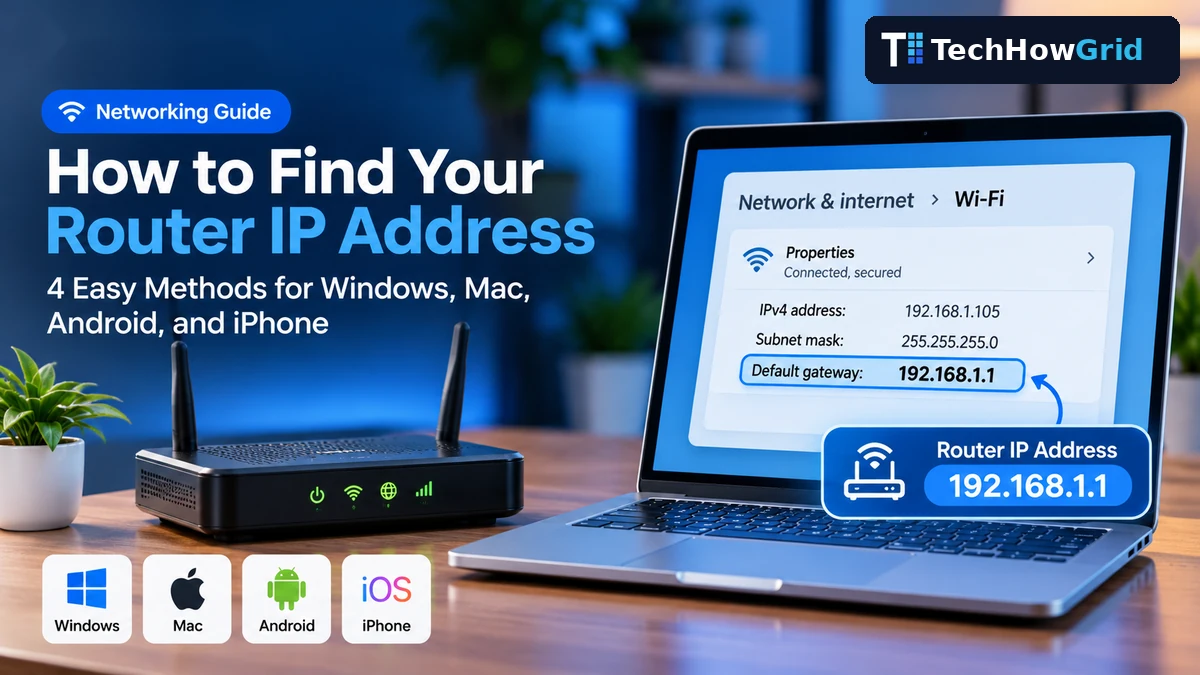
To find your router IP address, connect to your home network and look for the default gateway (Windows), Router (Mac or iPhone), or Gateway (Android) in the network connection details. Common examples include 192.168.1.1 and 192.168.0.1, but your actual address depends on your network.
This guide covers four methods that work without installing third-party network tools. Use a device connected to the network you are authorized to manage. You do not usually need a working internet connection to look up a local gateway.
In this guide
- What is your router IP address?
- 1. Find your router IP address on Windows
- 2. Find your router IP address on Mac
- 3. Find your router IP address on Android
- 4. Find your router IP address on iPhone or iPad
- How to open your router settings
- What if the router IP does not work?
- Frequently asked questions
- Related guides
What is your router IP address?
A router forwards traffic between networks. On a typical home network, your computer or phone uses the router’s local IP address as its default gateway for traffic to destinations outside the local network. That address is often also used to reach the router’s administration page.
| Address type | Illustrative example | Purpose |
|---|---|---|
| Router LAN address | 192.168.1.1 | Local gateway and possible administration address |
| Device IP address | 192.168.1.105 | Identifies your connected computer or phone |
| Subnet mask | 255.255.255.0 | Helps determine the local network range |
| Public IP address | Varies by provider | Address used for internet-facing traffic |
These are example addresses, not values to enter into your own network settings. A public IP lookup website will not normally tell you the local router address. In a mesh or access-point installation, the default gateway may also belong to a different device than the Wi-Fi unit you are connected to.
1. Find your router IP address on Windows
Command Prompt provides a simple way to find the IPv4 gateway in Windows 11 or Windows 10 without changing any network settings.
- Connect to your router through Wi-Fi or Ethernet.
- Open Start, type Command Prompt, and launch it.
- Run the command below. Administrator permissions are not normally needed.
- Locate the connected Wi-Fi or Ethernet adapter and read its Default Gateway value.
ipconfigAn example result might look like this. Your own output will vary.
IPv4 Address. . . . . . : 192.168.1.105
Subnet Mask . . . . . . : 255.255.255.0
Default Gateway . . . . : 192.168.1.1
Here the gateway is 192.168.1.1, not 192.168.1.105. If several adapters appear, skip disconnected adapters and identify the connection you actually use. VPN and virtual machine adapters can introduce additional gateways. See Microsoft’s Windows connectivity guidance.
2. Find your router IP address on Mac
On recent macOS versions, the router address appears in the connected network’s TCP/IP settings.
- Open the Apple menu and choose System Settings.
- Select Network, then choose your active Wi-Fi or Ethernet connection.
- Open Details and select TCP/IP.
- Read the value beside Router under the IPv4 configuration.
Older versions of macOS use System Preferences and may place the TCP/IP tab under Advanced. Avoid changing Configure IPv4, DNS or other settings just to view the address. Apple’s TCP/IP settings documentation explains these controls.
3. Find your router IP address on Android
Android menus differ between manufacturers and operating system versions. Look in the details for the currently connected wireless network.
- Open Settings and choose Network & internet, Connections or the equivalent network menu.
- Open Internet or Wi-Fi and select the network that is connected.
- Tap its settings icon or expand the network details if available.
- Look for Gateway or Router. Do not confuse this with the phone’s own IP address.
Some Android devices do not display the gateway in their standard network screen. If yours does not, use another connected device, the router’s official management app, or your model’s documentation. There is no need to change IP assignment to Static merely to find the gateway.
4. Find your router IP address on iPhone or iPad
- Open Settings and tap Wi-Fi.
- Find your connected network and tap the information button beside its name.
- Scroll to the IPv4 Address section.
- Read the Router field.
The IP Address field identifies the iPhone or iPad itself. The Router field identifies its local gateway. For device-specific examples, consult TP-Link’s cross-platform router address guide.
How to open your router settings
Once you know the gateway, check the router manual or official app for the correct management address. For a router that offers a local web interface, enter the documented address directly in the browser address bar rather than searching for it online.
For example, if the gateway is 192.168.1.1 and the manufacturer supports local HTTPS administration at that address, enter https://192.168.1.1. Some older devices instead use HTTP or a manufacturer-specific local hostname. Follow the device’s documented connection method.
Use only the administrator credentials for a network you own or are authorized to manage. The Wi-Fi password and router administrator password can be different. Do not enter credentials into an unfamiliar website or ignore an unexpected certificate warning; confirm the intended address and access method with the manufacturer or ISP.
What if the router IP does not work?
- Make sure the device is connected to the intended local network, not mobile data or a different Wi-Fi network.
- Check that you copied the gateway rather than the device’s IP address.
- If your gateway is missing, reconnect to the network or investigate whether the device received a valid network configuration.
- If you use a VPN, check whether its policy prevents local network access. On managed devices, consult IT before changing it.
- If the gateway is reachable but the administration page does not open, the router may require an app, a different management address, or ISP authorization.
A guest network may allow internet access while blocking the router’s administration interface. In bridge mode, an access point or mesh satellite can have its own management address that differs from the default gateway. Use the main router’s authorized management app or device list to locate the intended equipment.
Do not factory-reset a router merely to discover its IP address. A reset can erase ISP settings, Wi-Fi passwords and customized network rules. If your router is supplied by an internet provider, contact that provider before resetting or changing its configuration.
Frequently asked questions
Is the router IP address always 192.168.1.1?
No. That is a common private address, but networks may use 192.168.0.1, 10.0.0.1 or another gateway. Check your active connection instead of guessing.
Can I find the router address without internet access?
Yes, provided you are connected to the local network and your device has received a gateway configuration. If the network connection itself is unavailable, consult the router documentation or another connected device.
Are my IP address and router IP address the same?
Usually not. Your device has its own local address, while the router has another address on the same network. The public address seen by websites is a separate concept.
Can I use the gateway address to manage a mesh Wi-Fi satellite?
Not necessarily. A satellite or access point may have a separate management address, or its settings may be controlled exclusively by the main router’s app.
Related guides
- Wi-Fi connected but no internet: six ways to fix it
- How to find your printer IP address
- Bluetooth not working in Windows 11
Explore more networking and Wi-Fi guides on TechHowGrid.