
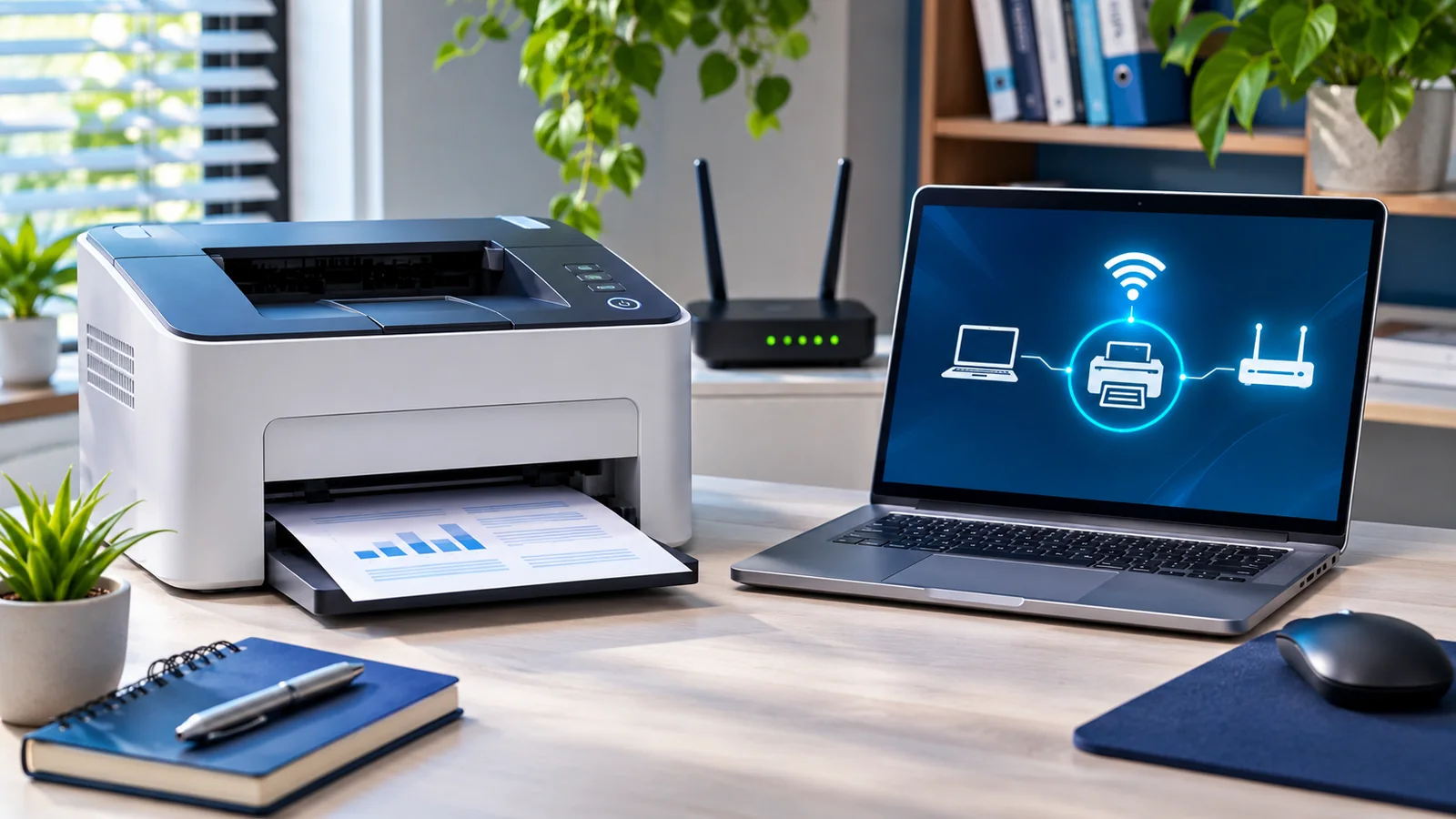
The quickest way to find your printer IP address is to open the printer’s network settings or print its network configuration report. If your printer has no screen, you can also check Windows printer ports, a Mac print queue, or your router’s connected-device list.
This guide explains which method to use for a Wi-Fi or Ethernet printer, how to confirm the address belongs to the right device, and what to do if the printer has no usable IP address. You do not need to install an IP scanner.
In this guide
- Which method should you use?
- Method 1: Find the IP address on the printer itself
- Method 2: Find your printer IP address in Windows 11
- Method 3: Find a printer address on macOS
- Method 4: Find the printer IP address through your router
- How to verify that you found the correct IP address
- What if the printer shows 0.0.0.0 or 169.254.x.x?
- Frequently asked questions
- Related guides
Which method should you use?
- Printer has a screen: open its network status menu.
- Printer has buttons only: print a network report.
- Printer is already installed on Windows: inspect its configured printer port.
- Printer is already installed on a Mac: check the print queue’s device address.
- Printer is connected but not installed: check your own router’s connected devices.
Method 1: Find the IP address on the printer itself
The printer’s own network status is a good starting point because it reflects the address configured on the device, rather than an old address stored on a computer.
- Turn on the printer and wait for its network connection to establish.
- Open its Settings, Network, Wi-Fi, or Ethernet menu. Names vary by model.
- Find a status or information screen and look for IPv4 Address or IP Address.
- If the printer has no display, look in its manual for the procedure to print a network configuration page, network status sheet, or information report. Read the IPv4 address for the active connection.
For example, an HP touchscreen printer may show the address in its wireless summary or network settings. On models without a screen, an information report may be available using the Information button. Follow the HP model-specific IP address guidance rather than guessing a button combination. Epson also documents network status sheets for its network printers.
If the report shows both wired and wireless addresses, use the one for the connection that is active. Avoid confusing the default gateway (usually your router) or MAC address with the printer’s IP.
Method 2: Find your printer IP address in Windows 11
If the printer is already installed, Windows can show the address or hostname configured for its printer port. This is useful when you cannot reach the printer physically.
- Open Settings and go to Bluetooth & devices → Printers & scanners.
- Choose your printer and open Printer properties (not Printing preferences).
- Select the Ports tab. Identify the port currently selected for that printer.
- If the port is a Standard TCP/IP port, select it and open Configure Port, if available. Read the printer name or IP address field without changing it. Close the dialog with Cancel.
The port name itself may contain an address, but it can also be a custom label. The host field is a better indication of the configured destination. Windows may instead use a WSD, IPP, USB or shared printer port. In that case, a numeric address may not appear here; use the printer report or router method instead.
Optional: Check installed printer ports with PowerShell
Open Windows PowerShell and run these read-only commands:
Get-Printer | Select-Object Name, PortName
Get-PrinterPort | Select-Object Name, PrinterHostAddress
Match the port name in the first result to its corresponding name in the second. A populated PrinterHostAddress may contain an IP address or hostname. Blank values are common with non-TCP/IP ports. These commands do not change printer settings; they only inspect the installed configuration. See Microsoft’s Get-PrinterPort reference.
Method 3: Find a printer address on macOS
Mac printers may be installed by IP address or discovered automatically through AirPrint. An AirPrint queue does not always expose a numeric address in System Settings.
- Open Apple menu → System Settings → Printers & Scanners.
- Select the printer and review its available details or options. If a device address is not shown, open Terminal.
- Run the following command to list installed printer queues and their configured device URIs.
lpstat -vAn illustrative result might contain socket://192.168.1.45:9100. In that example, 192.168.1.45 is the host and 9100 is the port, not part of the IP address. An IPP queue can contain a hostname instead. If the result starts with dnssd:// or points to a print server, it may not reveal the printer’s direct IP address. Use the printer report or router to identify it.
Once you have the address, Apple’s printer setup guide explains adding a printer by IP using a protocol supported by the device. The CUPS lpstat manual documents the queue inspection command.
Method 4: Find the printer IP address through your router
This method works even if you have never installed the printer on your computer. You need permission to manage the network and access to its router dashboard.
- Connect your computer or phone to the printer’s local network.
- Open your router’s management app or web interface using the router’s documented address. On a Windows PC, the Default Gateway shown by
ipconfigis often the router’s address. - Open the connected devices, clients, network map, or DHCP lease list.
- Locate the printer by its model name or hostname. If the name is unclear, compare its MAC address against the printer’s network report.
- Record the IP address and confirm the printer is currently connected.
For example, some TP-Link routers expose a client list in the Tether app or web dashboard; the exact menu depends on the router. See TP-Link’s connected-device guide. A DHCP lease may remain listed after a printer goes offline, and a manually configured printer may not appear in the DHCP list.
How to verify that you found the correct IP address
Suppose your printer’s report lists 192.168.1.45. This is an illustrative private-network address; substitute your actual address.
- Confirm that the printer and computer are on a network that permits them to communicate.
- If your printer supports a built-in management page, enter its IP address directly in the browser address bar while connected to your trusted local network. Prefer HTTPS if supported; do not bypass unexpected certificate warnings or enter credentials on an unverified page.
- Compare the model information or device name with your physical printer.
- If the printer is installed, try a test page. The old configured port can differ from the printer’s current address if the router assigned a new one.
A failed browser connection or ping does not prove the printer is offline. The device may have disabled that service, or network isolation may prevent access. A successful print test is stronger evidence that the configured print queue works.
What if the printer shows 0.0.0.0 or 169.254.x.x?
An address of 0.0.0.0 generally means an IPv4 address is not yet configured. A 169.254.x.x address is link-local and often indicates that the printer could not receive an address from the network’s DHCP service. Such an address is not normally appropriate for a printer intended to use your home router’s network.
- Check the printer’s Wi-Fi connection or Ethernet cable and confirm the correct network.
- Make sure the router is running and DHCP is enabled where your network expects it.
- Reconnect the printer using its manufacturer’s instructions and print a fresh status report.
- If the printer and computer are on a guest network or separate VLANs, ask the network administrator to check isolation rules. Avoid changing a managed office network yourself.
See Epson’s network troubleshooting guidance for an example of this address-assignment issue.
Frequently asked questions
Does a USB printer have an IP address?
Not simply because it is connected by USB. A USB-only printer has no independent network address. If it is shared through a computer or print server, the server has the network address. A printer with both USB and network capability may have an IP when its network interface is connected.
Can the printer IP address change?
Yes. A router can assign a different address through DHCP. If that causes recurring offline errors, ask the router administrator to reserve an IP address for the printer’s active MAC address. Do not manually choose an address that may conflict with another device.
Can I find the printer IP address from my phone?
Yes, if the printer manufacturer’s app displays network details or your router’s management app lists connected devices. The phone must be on an authorized network that can reach the printer.
Is the printer IP address the same as the router IP address?
No. The router and printer generally have different local addresses. A network report’s default gateway identifies the router, while the printer’s IP Address field identifies the printer.
Need help with other printing problems? Explore our printer troubleshooting guides or networking and Wi-Fi guides.
Related guides
- How to clear the Windows 11 print queue
- How to fix an Epson printer not printing black
- How to troubleshoot Wi-Fi with no internet
Editorial note: This guide is based on manufacturer and technical documentation. The sample addresses are illustrative; procedures have not been independently tested on every printer model or operating system version.