If Excel formulas are not calculating, check whether the workbook is set to Manual calculation, whether the affected cell contains text instead of a formula, and whether Show Formulas is enabled. If Excel returns zero or an unexpected number, inspect the source data and cell references before changing the calculation settings.
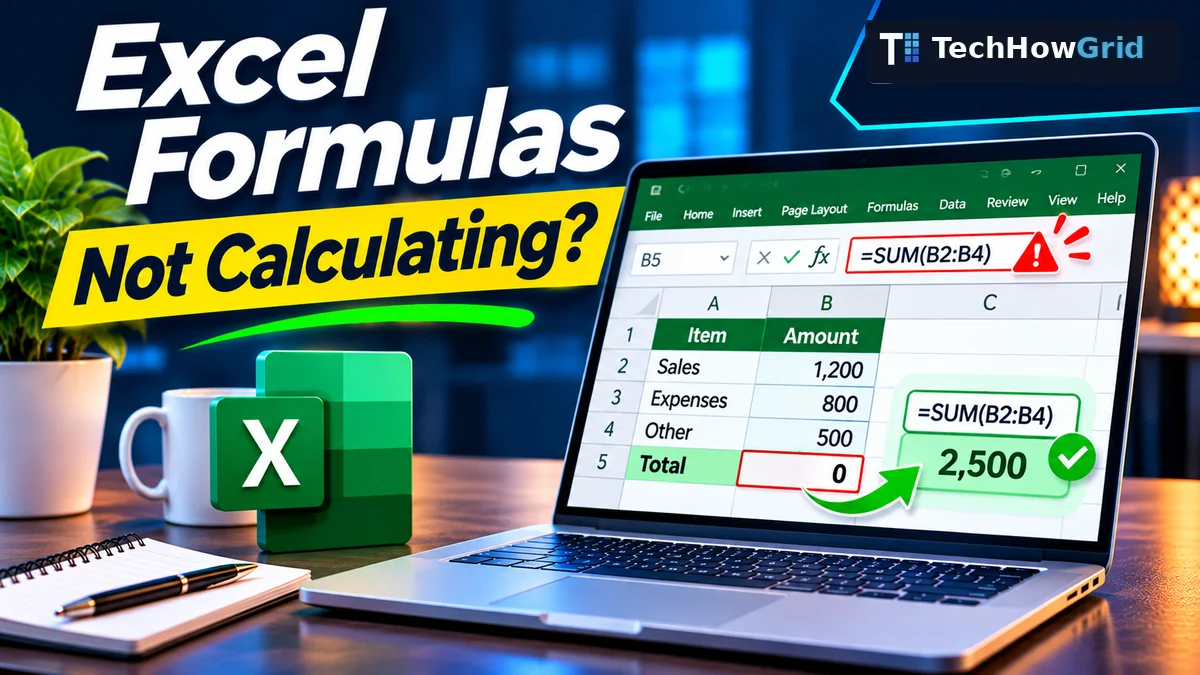
This guide covers eight ways to diagnose formulas that do not update automatically, appear as text or return incorrect totals. The examples use Excel for Microsoft 365 on Windows. Some ribbon commands and shortcuts differ on Mac and Excel for the web. The featured image illustrates a calculation problem rather than reproducing a real spreadsheet screenshot.
Keep common formula syntax handy with our free printable Excel formula cheat sheet, including IF, SUMIF and lookup examples.
In this guide
- Quick diagnosis
- 1. Enable automatic calculation
- 2. Fix formulas stored as text
- 3. Turn off Show Formulas
- 4. Convert numbers stored as text
- 5. Check formula references
- 6. Investigate formula errors
- 7. Resolve circular references
- 8. Check recalculation and external links
- Practice example
- Frequently asked questions
- Related Excel guides
Why are my Excel formulas not calculating?
| Symptom | First check |
|---|---|
| Results update only after pressing F9 | Calculation mode may be Manual. |
| All formulas display their expressions | Show Formulas may be enabled. |
| One cell displays =SUM(B2:B4) | Check Text format or a leading apostrophe. |
| SUM ignores some amounts | Check whether those numbers are stored as text. |
| Copied formula gives the wrong result | Inspect relative and absolute cell references. |
| Formula displays #VALUE! or #REF! | Diagnose the particular error. |
| Excel warns about a circular reference | Check whether a formula depends on itself. |
Make a backup copy before changing formulas in an important financial report. A formula that produces a number is not necessarily correct. For invoices, budgets and inventory reports, compare the final results against known test values before relying on the repaired workbook.
1. Enable automatic calculation in Excel
Excel normally updates a formula when a value it depends on changes. Manual calculation can leave the old result visible until you request recalculation. This is useful in some large workbooks, but it can cause confusion when you expect totals to update immediately.
- Open the Formulas tab in desktop Excel.
- Select Calculation Options.
- Choose Automatic.
- Change a known input value and check whether its dependent result updates.
For example, enter 10 in A1 and =A1*2 in B1. B1 should display 20. Change A1 to 15 and B1 should become 30. If the result stays at 20 until you press F9, inspect the calculation mode. If the mode is already Automatic, investigate the cell itself and its dependencies.
In desktop Excel, calculation settings can affect other open workbooks. If your team deliberately uses Manual mode for a complex model, check its workflow before changing the setting. Automatic Except for Data Tables is another mode that may behave differently for what-if data tables. Microsoft’s calculation settings guide explains these options.
2. Fix Excel formulas showing as text instead of a result
A worksheet cell can contain an expression that looks like a formula but is actually stored as a text string. This is common when a column has been formatted as Text before someone enters a formula, or when copied content includes a leading apostrophe.
- Select the affected cell and examine its contents in the formula bar.
- Set its number format to General on the Home tab.
- Remove any unintended apostrophe or character before the equal sign.
- On Windows desktop Excel, press F2 and then Enter, or re-enter the formula.
- Confirm that the cell now displays a calculated result.
Changing a cell’s format from Text to General does not necessarily reinterpret existing text. Re-entering the formula is the important extra step. For a single cell, typing the expression again is often the simplest method.
| Entry | Expected behavior |
|---|---|
| SUM(A1:A3) | Text, because the equal sign is missing. |
| ‘=SUM(A1:A3) | Text, because the apostrophe forces text interpretation. |
| =SUM(A1:A3) | A calculation when entered as a valid formula in a suitable cell. |
Do not replace all apostrophes across an entire workbook. Some cells may intentionally contain identifiers or literal examples. Work on the affected formulas and preserve text values that should remain unchanged.
3. Turn off Show Formulas
Show Formulas is a display option for reviewing worksheet expressions. If it is enabled, many formula cells display their underlying expressions instead of their calculated values. Column widths may also appear different.
- Open the Formulas tab.
- Find Show Formulas in the formula auditing commands.
- Turn the option off if it is enabled.
- Check that the results are visible again.
On many Windows keyboards, Ctrl plus the grave accent key toggles this view. The ribbon is easier to use when your keyboard layout differs. If just one cell still displays a formula after you turn the view off, return to the Text format checks. See Microsoft’s broken formula troubleshooting guide for additional checks.
4. Convert numbers stored as text
Sometimes the formula is valid but the inputs are unsuitable for the operation. For example, SUM may ignore amounts stored as text inside a referenced range. Imported CSV files, PDF conversions and copied web tables can introduce this problem.
Suppose A2 contains the numeric value 1200, while A3 and A4 contain the text representations 800 and 500. The SUM of that range can return 1200 rather than 2500. You can check the data type with =ISNUMBER(A3). A FALSE result indicates that the value is not stored as a number.
- Select the affected numeric data, excluding identifiers and labels.
- If Excel offers a warning menu with Convert to Number, choose that option for the intended amounts.
- Alternatively, use a helper column with VALUE for compatible numeric text, then inspect the converted results.
- Verify decimal separators, thousands separators and currency formatting before replacing source values.
- Recheck the original formula against the expected total.
Do not convert product codes, bank reference numbers or postal codes indiscriminately. They may need to remain text to preserve leading zeros or long identifiers. If the source was a PDF table, our PDF to Excel guide discusses the importance of checking imported data.
5. Check ranges and relative or absolute references
A formula can calculate correctly but use the wrong inputs. For example, =SUM(B2:B4) will not include a newly added amount in B5. Check whether the range covers all intended rows. When working with expanding transaction lists, an Excel table and an appropriate structured reference can help include new records.
| Formula | Behavior when copied down |
|---|---|
| =B2*C2 | Both references move to the next row. |
| =B2*$F$1 | B2 changes; F1 stays fixed. |
| =SUM(B2:B4) | The entire range moves with a normal relative copy. |
Imagine a pricing worksheet where column B contains the unit rate and F1 stores a tax rate. A formula intended to use that same rate for every line should anchor F1 with dollar signs. If a copied formula points to an empty F2 or an unrelated cell, you may receive an unexpected zero or another incorrect result.
Review formula references before changing the values themselves. If two versions of a worksheet behave differently, our Excel sheet comparison guide can help identify changed inputs.
6. Investigate the specific Excel formula error
| Error | What to investigate |
|---|---|
| #DIV/0! | A divisor is zero or blank. |
| #VALUE! | An argument or input has an unsuitable data type. |
| #REF! | A cell or range reference is invalid. |
| #NAME? | A name or function is not recognized. |
| #N/A | A lookup cannot find the required match or another value is unavailable. |
| #SPILL! | A dynamic array cannot place its results in the intended output range. |
Use the formula bar and the available Error Checking or Evaluate Formula commands to inspect the calculation. Microsoft’s formula error guide explains the different error types. If Excel refuses to accept a formula, check its parentheses, quotation marks and argument separators. Different regional settings may require commas or semicolons between arguments.
Avoid wrapping every formula in IFERROR with a zero result. That may hide missing records, invalid references or other issues that deserve investigation. Handle an expected error explicitly only after understanding why it occurs.
7. Resolve circular references
A circular reference occurs when a formula directly or indirectly depends on its own result. For example, placing =SUM(B2:B5) in B5 includes the result cell itself. The intended formula may instead be =SUM(B2:B4).
- Open the Formulas tab and look for Error Checking and Circular References on supported desktop versions.
- Select a listed cell and review the formula’s dependencies.
- Correct an accidental self-reference or dependency loop.
- Repeat the check and confirm the expected result.
Some specialized financial or engineering models deliberately use iterative calculation. Do not enable iteration merely to suppress a warning in an ordinary total or invoice. If the workbook relies on an intentional circular calculation, consult its owner before changing the settings.
8. Check recalculation and external workbook links
If the settings and formula are correct but an old value remains visible, request recalculation and inspect any linked files. On Windows desktop Excel, F9 recalculates formulas that require calculation, while Ctrl+Alt+F9 requests calculation of all formulas in open workbooks. Use the ribbon commands if your keyboard shortcuts differ.
Some workbooks refer to another spreadsheet file. If that source has been moved, renamed, or has stale results of its own, the dependent workbook may be incomplete or show outdated values. Check the workbook links and confirm the source is the intended file before refreshing it. Never enable external content from an unknown or untrusted workbook just to clear an error.
For large workbooks, unnecessary formulas, oversized ranges and external dependencies can make calculation slow. Wait for the calculation operation to finish before evaluating the result. If only one workbook is affected, test a simple formula in a separate blank file to distinguish a workbook-specific problem from a wider application issue.
Practical example: fix a SUM formula that returns zero
Create a new test worksheet and enter the following fictional data. Use ordinary numeric cells for the amounts.
| Row | Column A: item | Column B: amount |
|---|---|---|
| 1 | Item | Amount |
| 2 | Keyboard | 1200 |
| 3 | Mouse | 800 |
| 4 | Cable | 500 |
| 5 | Total | =SUM(B2:B4) |
The correct total is 2500. Change B2 to 1500; the result should increase to 2800. If the old total remains, inspect Automatic calculation. If B5 displays its formula expression, inspect Show Formulas and the cell’s data type. If the result omits an amount, check the data type of each source value using ISNUMBER.
This simple test isolates several causes without changing your real business workbook. Once the test succeeds, apply the corresponding fix to a copy of the affected workbook and verify all important totals. The example is illustrative, not a claim of hands-on testing of a particular Excel release.
Frequently asked questions
Why does Excel calculate only after I save the file?
Manual calculation with recalculation before saving may explain this behavior. Check Calculation Options and choose Automatic if your workbook is intended to update continuously.
Why does Excel show my formula instead of the answer?
Check whether Show Formulas is on, whether the cell is formatted as Text, and whether an unintended apostrophe appears before the equal sign. Re-enter the formula after correcting the cell format.
Why is SUM returning zero even though numbers are visible?
Check whether the values are stored as text and whether the formula references the correct range. A valid-looking number can still be text.
Does F9 fix a broken formula?
F9 requests recalculation on supported desktop versions. It cannot repair a missing reference, convert text into a number or correct the wrong calculation logic.
Will reinstalling Excel fix formulas that do not calculate?
Usually it is better to inspect calculation mode, formula syntax and source data first. Reinstallation cannot fix a worksheet containing incorrect references or imported numeric text.
Related TechHowGrid Excel guides
- Freeze rows and columns in Excel
- Create an Excel drop-down list
- Remove duplicates in Excel
- Combine multiple Excel workbooks
- Use ChatGPT with Excel
For more help with spreadsheet formulas, data cleanup and ready-to-use resources, explore our Excel guides and tools.
Identify whether the issue is a stale result, a text expression, an error or an incorrect value. Choose the corresponding repair, then verify the calculation against a known example. This is more reliable than changing several Excel settings at once.