
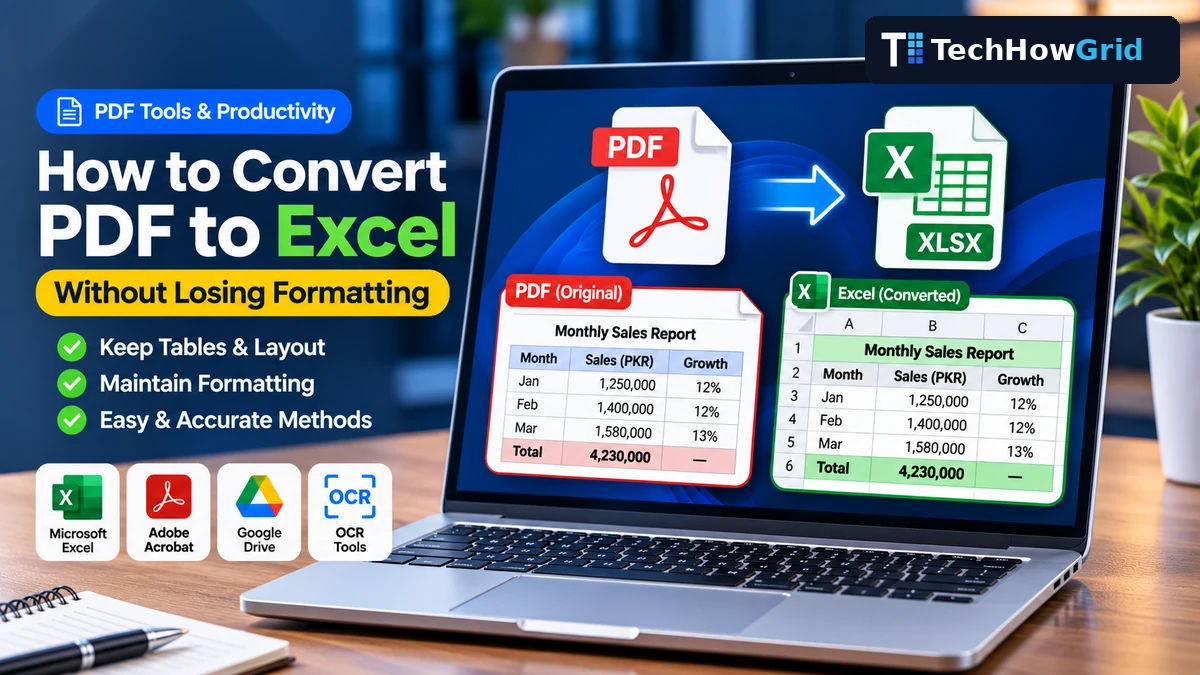
To convert PDF to Excel while retaining as much formatting as possible, first determine whether the PDF contains selectable text or scanned images. Excel’s Power Query is useful for extracting structured tables, while Adobe Acrobat can create an editable workbook from a document and recognize scanned text. Neither method guarantees a pixel-perfect copy of the original.
PDFs describe how a document looks on a page, whereas Excel organizes information into cells. The original spreadsheet formulas, data validation rules and hidden worksheets usually cannot be recovered from a PDF alone. If the original XLSX file is available, use it instead of converting the PDF.
In this guide
Choose the right conversion method
Open the PDF and try selecting a few words and numbers. If you can select individual characters, the file probably contains a text layer. If you can only select an entire page as an image, it may require optical character recognition (OCR). Some scanned PDFs already contain an OCR text layer, so selectability does not guarantee accurate extraction.
| PDF type | Recommended method | What to expect |
|---|---|---|
| Digital report with consistent tables | Excel Power Query | Structured data, limited visual styling |
| Complex document with multiple tables | Acrobat export | Editable workbook, formatting may need adjustments |
| Scanned invoice or statement | OCR followed by export | Manual accuracy checks needed |
| Small, simple table | Copy and paste | Quick extraction with manual cleanup |
For confidential invoices, payroll records or customer data, prefer an approved local workflow. Before using a cloud-based converter, check whether your organization permits the upload and whether the provider retains the document. Do not bypass password protection or document restrictions.
1. Import a PDF directly into Excel
Excel’s PDF connector extracts detected tables and pages using Power Query. It is particularly useful when you need consistent columns that can be filtered, calculated or combined with other spreadsheets. Check whether your Excel version supports this connector in Microsoft’s Power Query availability table.
- Open a blank workbook in a supported desktop version of Excel.
- On the Data tab, open Get Data, then From File, and choose From PDF if available.
- Select the PDF from your computer. In the Navigator, preview the detected tables and pages.
- Choose the relevant table. Use Transform Data if the rows or headers need cleanup, or Load if the preview is already correct.
- In Power Query Editor, remove unwanted title rows and repeated page headers, confirm column names and review data types.
- Load the cleaned result into a worksheet, then save the workbook as XLSX.
If the From PDF option is missing, check your Excel edition and platform before reinstalling anything. Not all Power Query connectors are available in every version. Microsoft’s data import documentation covers the supported import workflow.
Power Query emphasizes usable data rather than the original visual design. Rebuild borders, fonts, column widths and number formats in Excel after importing. If a long document causes import difficulties, try smaller page ranges using the connector’s documented options. Multi-line rows may require additional cleanup. See the PDF connector reference.
2. Export a PDF with Adobe Acrobat
Adobe Acrobat offers PDF export to Excel in supported editions or subscriptions. It can be useful when Power Query does not detect the required tables cleanly, or when you need to export multiple tables at once.
- Open the PDF in Acrobat.
- Find the conversion or export tool and select the spreadsheet format, then Microsoft Excel Workbook (XLSX).
- Review the available spreadsheet settings. Choose whether to organize worksheets by table, page or the entire document, according to the layout you need.
- Check the numeric separator and text recognition settings when available. Choose the appropriate language for scanned material.
- Convert and save the workbook, then open it in Excel for review.
Menu labels and available features can differ by Acrobat edition. See Adobe’s PDF-to-Excel export instructions. Compare the exported cells with the source PDF before using the result for reporting or calculations.
3. Extract data from a scanned PDF
A scanned PDF may consist entirely of page images. OCR identifies characters within those images so that they can be searched, selected and extracted. The process does not guarantee that the original table boundaries will be detected correctly.
- Keep a copy of the original PDF. Open a working copy in an OCR-capable application approved for your documents.
- In Acrobat, use the Scan & OCR tools and select the text recognition operation for the file.
- Choose the correct document language and review the recognized text, especially figures and identifiers.
- Save the recognized PDF or export it directly to Excel using a supported conversion option.
- Inspect the output row by row where the document contains important financial or operational data.
For a scan with skewed pages, faint text or handwritten entries, OCR may confuse characters such as O and 0, or 1 and I. A missing decimal separator can significantly change a monetary value. Adobe’s OCR documentation explains its text recognition workflow.
4. Copy a small table manually
For a short selectable table, manual copying may be faster than converting the whole file. Select the text in the PDF, copy it, and paste it into a blank worksheet. If the data arrives in one column, Excel’s Text to Columns tool may help when the values have a reliable separator such as a tab.
Do not split on spaces if product descriptions or names contain spaces. Check the preview before applying any split. For irregular tables, manually enter the few affected cells from the PDF rather than trying to force every row through the same rule. Use this method for small tables, not hundreds of pages.
How to preserve and check formatting
After conversion, treat the worksheet as newly extracted data rather than a verified copy. Use the following checks before distributing it or performing calculations.
- Protect identifiers: Set invoice numbers, postal codes and product codes to Text before import where necessary. Otherwise, leading zeros may disappear or long identifiers may lose precision.
- Review dates: Check ambiguous dates such as 03/04/2026 against the document’s regional convention.
- Check amounts: Ensure currency values, thousands separators, decimal points and negative amounts are interpreted correctly.
- Check table structure: Remove repeated headers without deleting actual records. Correct wrapped descriptions and misaligned columns.
- Restore presentation: Apply suitable column widths, text wrapping, number formats, borders and header styles after validating the data.
- Reconcile totals: Compare row counts, subtotals and grand totals against the original document.
For example, if three PDF line items contain 125.50, 80.00 and 44.50, their expected total is 250.00. Use a SUM formula on the corresponding Excel cells and compare the result. A matching total is useful, but it does not prove every row is correct; two separate errors can offset each other.
Recreate formulas only when you know the intended calculation. Do not assume that a displayed total in a PDF contains a recoverable Excel formula. Keep a separate untouched copy of the imported values for comparison.
Frequently asked questions
Can I convert PDF to Excel without losing any formatting?
Not reliably. Conversion can preserve many table values and some layout elements, but page-based formatting, merged cells, formulas and spacing may not transfer exactly. The original workbook is the best option when available.
Can I convert a PDF to Excel for free?
If your existing Excel license includes the PDF connector, you can import supported PDFs without buying a separate converter. Manual copying is another option for simple documents. OCR and export services may require a paid edition.
Why are all my PDF values in one Excel column?
The extraction tool may not recognize column boundaries. Try Power Query or a different conversion method. For consistently delimited data, use Text to Columns and check its preview.
Can I use a PDF converter for bank statements?
Only use tools approved for that sensitive information. Review the provider’s processing practices and reconcile every relevant transaction and balance before relying on the converted workbook.
Related guides
Explore more practical software and spreadsheet tutorials on TechHowGrid.