
To compare two Word documents and highlight differences, open Microsoft Word on your computer, select Review, then Compare, and choose the original and revised files. Set the result to appear in a new document. Word will identify changes and display them as revision marks, allowing you to inspect the edits without overwriting either source.
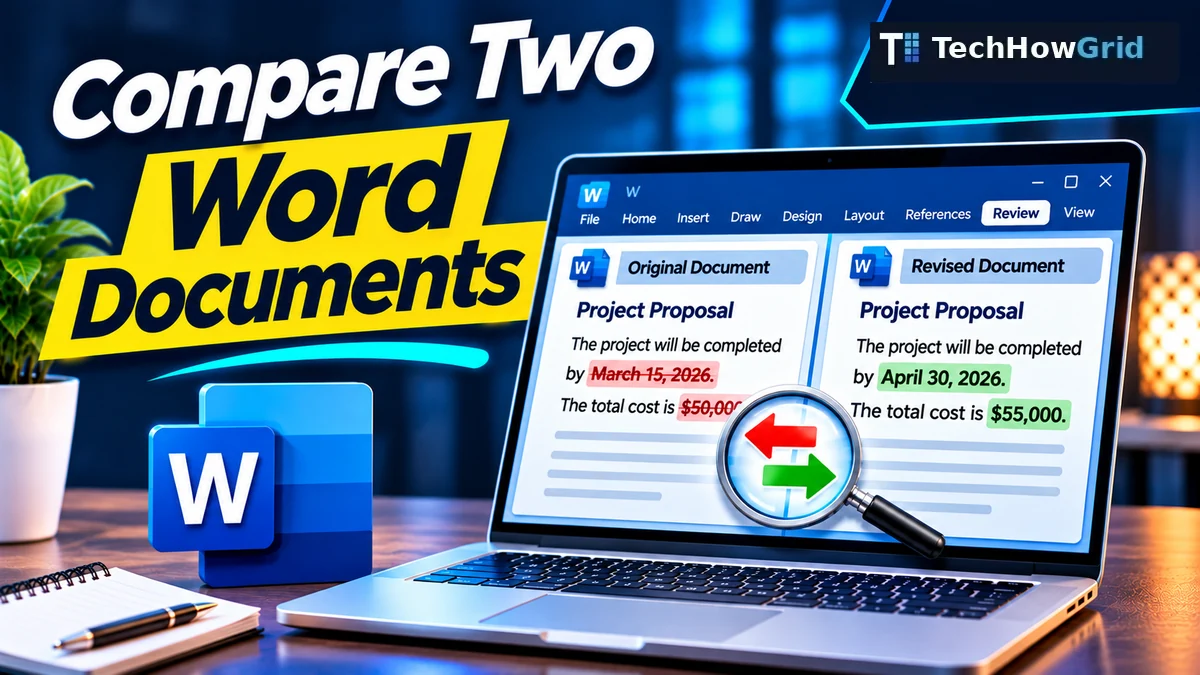
This guide explains how to compare Word documents on Windows and Mac, select the right comparison settings, review additions and deletions, and save a separate comparison report. It also explains what to do if you only have Word for the web. The featured thumbnail is an illustration, not a screenshot of the actual Word interface.
In this guide
- Quick comparison guide
- Prepare the two files
- Compare documents in Microsoft Word for Windows
- Choose what differences Word detects
- Review and save highlighted differences
- Compare Word documents on Mac
- Compare Word documents online
- Compare vs Combine vs Track Changes
- Practical proposal comparison example
- Troubleshooting common comparison problems
- Frequently asked questions
- Related guides
How to compare two Word documents: quick guide
| Your goal | Recommended approach |
|---|---|
| Find changes between two versions | Word desktop Compare |
| Review two layouts manually | View Side by Side |
| Consolidate edits from multiple reviewers | Word desktop Combine |
| Find an earlier version of one cloud document | Version History, where available |
| Check PDFs or other file formats | A trusted tool that explicitly supports those formats |
For two independently saved versions of a proposal, contract or report, Compare is normally the most useful starting point. It can identify edits even if neither version was edited with Track Changes enabled. However, automated comparison does not decide whether a change is correct, authorized or legally significant. That requires your review.
Prepare the two Word files before comparing
First, establish which file is the baseline. File names such as final, final-new and final-revised can be misleading if several people have edited the same document. Check the date, author and actual contents before assigning a file as the original.
- Keep separate, unmodified copies of both source documents.
- Choose a clear filename for each, such as Proposal-Original.docx and Proposal-Revised.docx.
- Open the files and confirm that Word can display their contents normally.
- Identify the types of differences you want to detect, including text, formatting or comments.
- Use an authorized copy if the document is subject to organizational access restrictions.
If an earlier version has not been saved as a separate file, check Version History for documents stored in a supported OneDrive or SharePoint location. Save or obtain a copy of the relevant version rather than immediately restoring it over your current work. If you lost an unsaved document, our guide to recovering unsaved Word documents explains a separate recovery process.
How to compare two Word documents in Microsoft Word on Windows
The desktop Compare feature is available in supported Word versions, including Microsoft 365 and several perpetual desktop releases. The labels and ribbon arrangement can vary slightly depending on your version and display size.
- Launch Word and select the Review tab.
- Open the Compare menu and choose Compare rather than Combine.
- Use the first file selector to identify your baseline document.
- Use the second selector to identify the revised copy.
- Expand the additional settings if you need to customize the comparison. Choose a new document as the output destination.
- Run the comparison and inspect the resulting revision marks.
Microsoft refers to this comparison workflow as a legal blackline. Its official comparison instructions explain the available configuration options. The default separate output is particularly helpful when you must preserve the source files.
If either file contains existing tracked changes, Word may ask how to handle them. Read the message before continuing. Compare can process the existing changes for its comparison result; do not assume it will preserve every reviewer’s individual attribution or editing history. When the purpose is to merge contributors’ tracked revisions, consider Combine instead.
Choose what differences Microsoft Word should detect
The additional comparison settings let you adjust the scope of the report. A change in font size is different from a change in a delivery deadline, so it can be helpful to distinguish formatting noise from important content edits.
| Comparison setting | When it is useful |
|---|---|
| Text changes | Identify inserted or removed wording. |
| Formatting | Review changes in styles and text appearance. |
| Comments | Check differences in review notes. |
| Tables | Inspect edits to document tables. |
| Headers and footers | Review information outside the main body. |
| Word or character level | Choose a readable granularity for the text comparison. |
For example, a document containing many changed typefaces may produce a distracting report when you only want to identify revised contractual obligations. Run a text-focused comparison for that purpose, then perform a separate formatting review if appearance also matters. Do not disable a comparison option and subsequently claim that the report verified that category of changes.
For small changes to numbers, product identifiers or punctuation, finer character-level comparison can be useful. For a long narrative report, word-level comparison may be easier to read. The right choice depends on the document rather than a universal setting.
How to review and save highlighted differences
The comparison document uses Word’s revision system to show the differences it detects. Insertions, deletions, formatting changes and comments may appear inline, in balloons or in the Reviewing Pane depending on the selected markup options. Colors are configurable and are not a reliable universal indicator of the type of edit.
- Select a detailed markup view, such as All Markup, while reviewing.
- Use the available navigation controls to inspect changes one at a time.
- Read surrounding sentences so that the meaning of a changed phrase is clear.
- Check important figures, dates, names and tables against the source documents.
- Save the comparison as a separate DOCX file with a clear name.
If you need an approved clean version, create a further copy of the reviewed result. Accept or reject changes deliberately, checking the final text after each material decision. Simply choosing a display mode that hides markup does not remove the revisions from a document. Before sharing a clean file externally, verify its revision and comment status and use your organization’s approved document inspection process.
How to view two Word documents side by side
You can also open two files and use View Side by Side from Word’s View tab on supported desktop versions. Enable Synchronous Scrolling if you want the windows to move together. This makes manual reading easier, but it does not itself create a list of detected edits. Microsoft’s side-by-side guide describes the window controls.
For reports with complex tables, diagrams or page layout, a visual comparison can complement the automated redline. Check document sections, page breaks and the rendered appearance where those details are important.
How to compare two Word documents on Mac
Supported Word for Mac desktop versions also provide a document comparison workflow. Open one source, find the comparison option under Review and select the baseline and revised files. Run the comparison and save the result separately. If your ribbon uses different terminology or does not display an option, refer to Microsoft’s Mac comparison guide and verify the installed Word version.
Do not assume that every Windows ribbon shortcut or advanced setting is identical on Mac. If you are collaborating with Windows users, agree on the source files and confirm that everyone is reviewing the same comparison output.
How to compare Word documents online without desktop Word
Microsoft’s desktop versus web feature comparison lists the full Compare and Merge revisions feature for the desktop application, not Word for the web. The browser application can still be useful for reviewing a document that already contains revisions or examining previous versions of a supported cloud file.
If you do not have desktop Word, you may consider a dedicated comparison service such as Draftable’s document comparison tool. Before using any online service, check its current format support, retention policy, privacy controls and organizational approval. A provider’s feature claims are not independent verification of its security.
Never upload confidential contracts, customer records, employee information or unpublished financial documents to an unapproved website. If the files are sensitive, use an authorized local comparison application or ask your IT department for a suitable tool. For simple non-sensitive text, manual comparison may be sufficient, although it is more time-consuming.
Compare vs Combine vs Track Changes in Word
| Feature | Best use |
|---|---|
| Compare | Identify differences between two separately saved document versions. |
| Combine | Bring revisions from multiple reviewed copies into one document. |
| Track Changes | Record edits while a document is being revised. |
| Version History | Find or restore earlier saved versions of a supported cloud file. |
Suppose one colleague revises the technical specification and another revises the commercial terms in copies of the same original. Compare is useful for examining each copy against the baseline. Combine is designed for consolidating their contributions. Microsoft’s document combination guide describes this separate workflow.
Use Track Changes proactively when asking colleagues to review future drafts. A clear process for filenames, review ownership and approval reduces the need to reconstruct editing decisions after the event.
Practical example: compare two project proposals
Imagine that you receive a revised proposal from a supplier. The filename is almost identical to the initial proposal, but you need to identify material changes before approving it. The following fictional example matches the concept shown in the featured image.
| Item | Original proposal | Revised proposal |
|---|---|---|
| Completion date | March 15, 2026 | April 30, 2026 |
| Total cost | $50,000 | $55,000 |
| Payment terms | Payment within 30 days | Payment within 15 days |
| Warranty | 12 months | 12 months |
Run Compare using the first proposal as the baseline and the second as the revised copy. Review the altered date, the revised price and the shorter payment period. The increase in price is $5,000, or 10% of the original cost. The warranty wording is unchanged in this simplified example.
After examining the redline, record the changes that require approval. Check any amounts written in words, schedules, annexures and tables separately, because the same obligation may appear in more than one part of a real document. Do not approve a proposal solely because the comparison output contains only a few revision marks.
Save the redline, the two source documents and any approved clean version as separate records. If the project also includes updated pricing spreadsheets, our guide to comparing Excel sheets explains an appropriate workflow for workbook data.
Why Word Compare is not working or showing differences
| Problem | Recommended check |
|---|---|
| Compare is missing from the ribbon | Confirm you are using a supported desktop Word application. |
| Wrong additions and deletions appear | Check whether the original and revised files were swapped. |
| Too many formatting changes appear | Review the selected comparison settings. |
| The report appears clean | Check the markup display and the actual source versions. |
| Existing changes appear differently | Check how Word handled tracked revisions and consider Combine. |
| A document cannot be opened or edited | Check permissions, file integrity and compatibility. |
If the two documents were created by converting different PDFs, layout shifts and conversion errors may introduce a large number of apparent differences. Where possible, compare the original editable documents instead of converted copies. Review important tables manually; a text comparison is not a guarantee that every visual or embedded object is unchanged.
For a lengthy or complicated document, start by comparing a small representative section in separate working copies. Confirm that the settings capture the changes you care about. Then run the complete comparison on the preserved source versions.
Frequently asked questions
Can Word compare two documents without Track Changes?
Yes. Word’s desktop comparison feature can generate revision marks from differences between the two supplied files, even if they were edited without Track Changes.
Does comparing Word documents change the original files?
Choose a new document as the comparison destination to preserve both originals. Keep backup copies and avoid saving the result over either source.
Can I compare more than two documents at once?
The standard Compare workflow takes two source versions. For multiple contributors, use a controlled sequence of comparisons or the Combine workflow, depending on whether you need separate redlines or consolidated revisions.
Can I compare a Word document with a PDF?
Word’s built-in comparison is designed for Word documents. A dedicated tool may support both formats. Converting a PDF to Word first can introduce additional changes, so check the converted content before relying on the report.
Can AI replace Word’s document comparison?
An AI tool may help summarize a redline or categorize changes if its use is authorized. It can miss material details or misinterpret language. Retain the source comparison and verify critical changes manually.
Related TechHowGrid guides
- Recover an unsaved Word document
- Use ChatGPT in Microsoft Word
- Compare two Excel sheets for differences
- Convert PDF to Excel
- Summarize PDF documents with ChatGPT
Use desktop Word’s Compare feature when you need a clear record of what changed between two files. Preserve both source documents, select comparison options carefully and review the output in context. For multiple reviewers, use Combine when appropriate, and treat automated comparison as a review aid rather than a substitute for approval.