
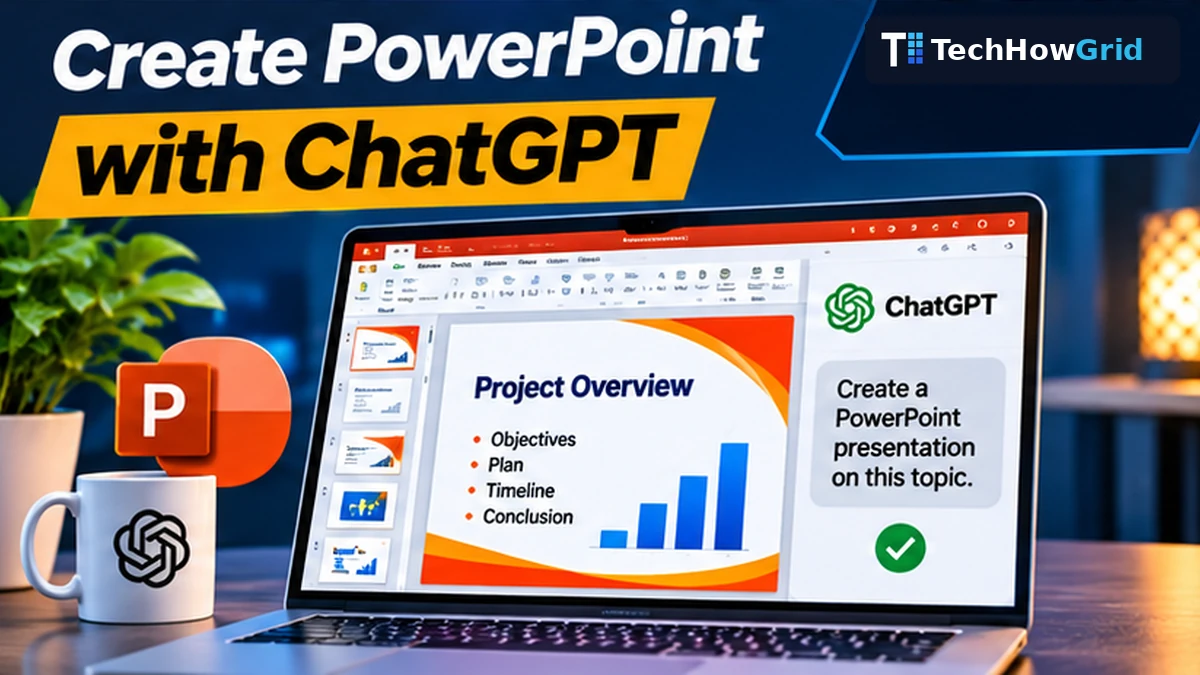
You can use ChatGPT to create PowerPoint presentations directly inside PowerPoint, generate an editable PPTX file using supported ChatGPT features, or prepare a slide outline and build the deck manually. The best choice depends on whether you already have a presentation template, how much design control you need, and which features your account supports.
Start with reliable source material and a clear audience. A well-designed slide deck should communicate a useful message, not simply turn every paragraph of a document into a slide. The featured image is an illustrative concept rather than an actual software screenshot.
In this guide
- Choose your presentation workflow
- 1. Install ChatGPT for PowerPoint
- 2. Create a presentation directly in PowerPoint
- 3. Generate an editable PPTX with ChatGPT Work
- 4. Import a slide outline manually
- Five practical prompts for better slides
- Review and improve the final presentation
- Frequently asked questions
- Related guides
Choose your presentation workflow
| Workflow | Best for | What to verify |
|---|---|---|
| ChatGPT for PowerPoint | Editing an existing deck or working in a template | Add-in access and slide changes |
| ChatGPT Work | Producing a separate presentation file from instructions or documents | File format, editability and layout |
| Manual outline import | Simple presentations with maximum control over final design | Heading levels and slide structure |
For a company presentation, open the approved template first if you want to retain the existing visual identity. For a classroom assignment, check the instructor’s rules on AI-assisted work. For a customer proposal, remove internal-only information before sharing the finished deck.
1. Install ChatGPT for PowerPoint
The official PowerPoint add-in provides a ChatGPT sidebar for working with presentations. Use the installation link from OpenAI’s PowerPoint help guide to confirm you are selecting the correct publisher.
- Open PowerPoint and find the Add-ins command on the Home ribbon.
- Search for the OpenAI-published ChatGPT add-in and install it if your account permits.
- Launch the new ChatGPT panel and authenticate using your authorized account.
- Start with a copy of a small presentation.
Access is offered on Free and paid ChatGPT plans, but usage allowances differ. Organizational administrators may restrict installation. An unavailable add-in does not necessarily mean that your PowerPoint installation is defective.
2. Create a presentation directly in PowerPoint
A good first request identifies the audience, meeting objective, source material and slide count. For example, if you are preparing a monthly project review, supply the approved progress report and tell ChatGPT whether the audience needs an executive summary or detailed operational information.
- Create or open the presentation you want to work on. Duplicate an important existing file before editing it.
- Provide the relevant source files or notes using supported attachment options.
- Request an outline that explains the message and evidence for each proposed slide.
- Review the outline, identify missing information and approve the structure.
- Ask for the slides to be created in the current deck, retaining the template and approved content.
- Inspect the slides and make targeted revisions rather than repeatedly regenerating the entire presentation.
For example, an eight-slide project review could contain a title slide, executive summary, objectives, milestone progress, budget status, key risks, upcoming actions and a final decision slide. Adapt the structure to the actual meeting. A short presentation may combine several of those topics.
Ask for charts only when the source contains suitable data. If a budget report provides actual and planned expenditure, specify the units, date range and whether the figures are cumulative. If the source lacks a figure, leave a clearly labeled placeholder instead of asking the assistant to invent a value.
3. Generate an editable PPTX with ChatGPT Work
If you prefer to create a separate deck, supported ChatGPT Work environments can produce a presentation file from instructions and attachments. See the ChatGPT Work file creation guide for current availability.
- Open Work if available on your account and attach the documents or approved template.
- Specify that the deliverable must be an editable PowerPoint file (.pptx), not a PDF or a collection of slide images.
- Describe the intended layout, audience, slide count and any content that must remain unchanged.
- Open the resulting file in PowerPoint. Check that text, charts and tables intended for editing are actually editable.
An editable presentation is especially useful if the figures or dates will change later. Some decorative illustrations may still be image objects, which is normal. If a chart needs ongoing updates, explicitly request an editable chart rather than a screenshot of a graph.
4. Import a slide outline manually
You can also use an ordinary ChatGPT conversation to generate slide titles, concise supporting points and optional presenter notes. This approach is useful when you cannot install an add-in or want to design each slide yourself.
- Ask ChatGPT to return a slide-by-slide outline rather than a long essay.
- Copy the outline into Word and apply Heading 1 to slide titles and Heading 2 to the corresponding bullet points.
- Save and close the outline document. In a supported desktop version of PowerPoint, choose New Slide → Slides from Outline and import the file.
- Apply your chosen theme and refine each slide’s layout. Add charts, images and presenter notes separately.
Microsoft’s outline import instructions explain the supported formats and heading hierarchy. If your platform lacks this feature, create the slides manually using the generated outline. An imported outline is a starting point, not a finished visual presentation.
Five practical prompts for better slides
These sample prompts are designed to be adapted to your own material. They specify the intended outcome and prevent common errors such as unnecessary rewriting or invented figures.
- Business review: Prepare a six-slide monthly performance deck from the attached report. Show only reported results and label any missing figures. End with decisions required from management.
- Training: Create a seven-slide introduction to password security for new employees. Use everyday examples and include a short knowledge check with answers in the speaker notes.
- Sales proposal: Convert this approved product proposal into five customer-facing slides. Keep product models, warranty terms and prices unchanged. Exclude internal cost information.
- Presentation redesign: Review this deck and suggest layout improvements for slides 3 through 6. Retain the approved template and all numerical values. Show the proposed edits before applying them.
- Speaker notes: Add concise talking points for a ten-minute presentation. Do not introduce facts absent from the slides or attached source material.
When the audience needs to make a decision, specify the question the presentation should answer. Ask for the conclusion to be visible in the slide title where appropriate. Replace vague headings such as ‘Results’ with a descriptive takeaway supported by the source data.
Review and improve the final presentation
Before presenting or sharing your deck, run a separate quality review. Check all claims, dates, currency amounts and chart labels against the supplied material. Open the slideshow at the intended display size to identify small text, clipped content and poorly aligned elements.
- Check the overall story: each slide should help the audience understand the next point.
- Check typography, contrast, spacing, consistent alignment and readability.
- Review chart scales, units, legends and source information. Do not use illustrative figures as real results.
- Verify hyperlinks, speaker notes and any sensitive information hidden in the deck.
- Save a final editable copy and export a PDF only if a fixed-layout distribution copy is required.
Use your organization’s approved account and data policies when sharing confidential documents. The PowerPoint add-in and ChatGPT have their own applicable data-processing arrangements. Advanced edits and exact template matching may require manual work. Review the current official product limitations before relying on the output.
Frequently asked questions
Can ChatGPT create an actual PowerPoint file?
Yes, supported file-creation features can generate PPTX presentations. The PowerPoint add-in can also work on a deck within the application. Availability depends on the account and environment.
Can I use ChatGPT for PowerPoint for free?
OpenAI offers limited access on Free accounts. You still need access to a compatible PowerPoint environment for the add-in workflow. Check current usage limits before starting a large project.
Will the slides match my existing template perfectly?
Not necessarily. Provide the approved template and clearly specify what must remain unchanged. Inspect the result and correct any deviations before distribution.
Can I turn a PDF report into a presentation?
Yes, when supported file input is available. Supply the report, identify the intended audience and request a structured deck based on the report’s evidence. Verify extracted figures, particularly from scanned or complex tables.
Related guides
- How to use ChatGPT in Microsoft Word
- How to use ChatGPT in Google Sheets
- How to export ChatGPT conversations to PDF
Explore more practical AI and productivity tutorials on TechHowGrid.