
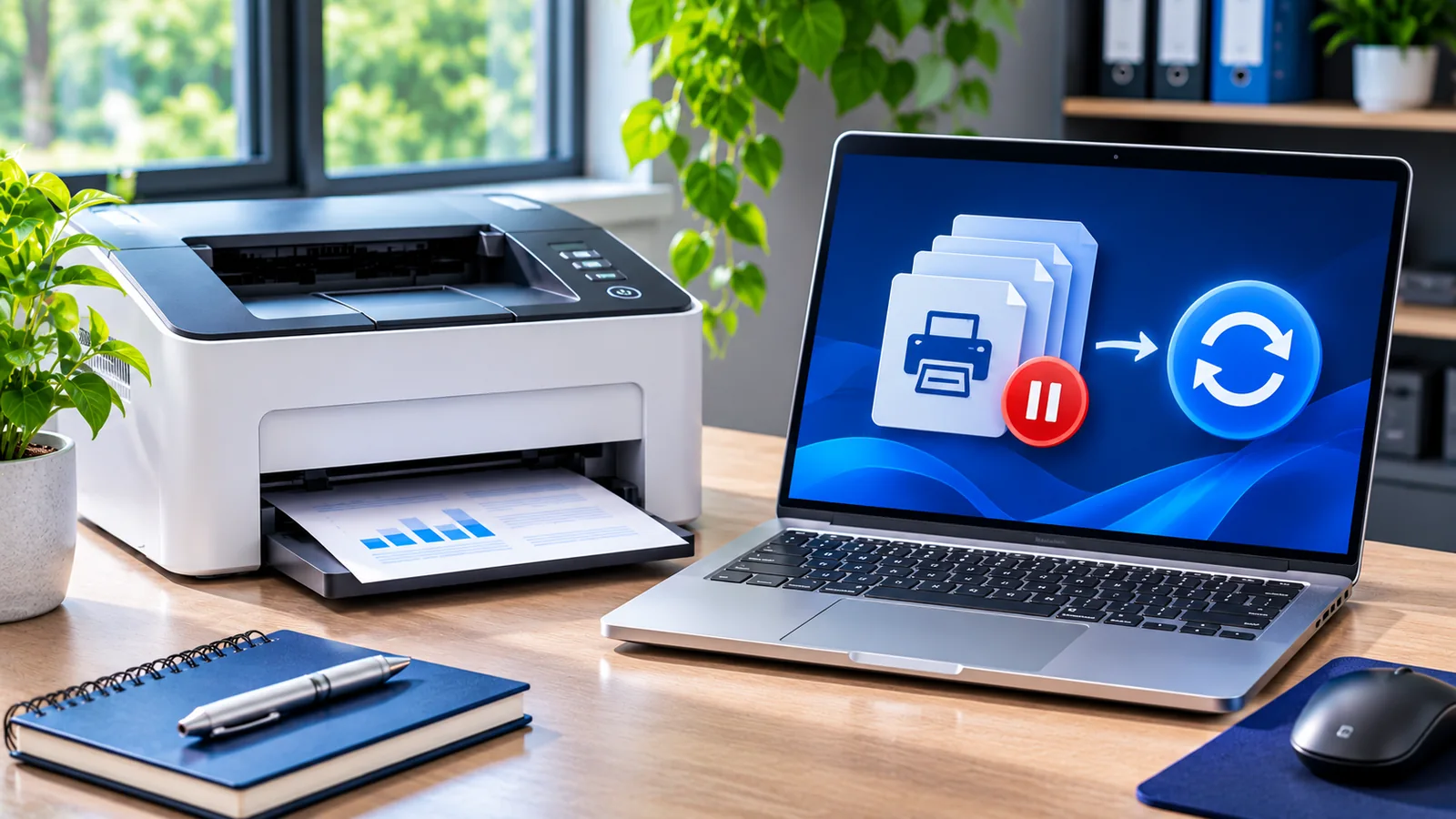
To clear the print queue in Windows 11, open Settings, select Bluetooth & devices, then Printers & scanners. Choose your printer and open its print queue. Cancel the document that is stuck. If the job remains in the queue, restart the Windows Print Spooler service before attempting a full queue reset.
A print queue is a waiting list of documents sent to a printer. A paper jam, interrupted connection, damaged print job, or software issue can prevent the first document from printing and hold up later jobs. You usually do not need to reinstall the printer or reset it to factory settings to clear the queue.
In this guide
- Before you clear the queue
- Method 1: Cancel stuck print jobs from Settings
- Method 2: Restart the Windows Print Spooler
- Method 3: Manually clear the spool folder
- Method 4: Check whether the printer itself is holding a job
- How to confirm that printing works again
- Why does the print queue keep getting stuck?
- Frequently asked questions
- Related guides
Before you clear the queue
Check that your printer has paper and sufficient ink or toner, that there is no paper jam, and that the correct printer is selected. Save your work in the original application before canceling anything. If you are using a shared office printer, ask the administrator before clearing other people’s print jobs or restarting a print server.
| What you see | What to try first |
|---|---|
| One unwanted print job | Cancel that job only. |
| Job stuck on Deleting or Error | Restart the Print Spooler. |
| Queue still contains jobs after restarting | Clear spool files as a last resort. |
| Queue is empty but paper is still printing | Use the printer’s own cancel button or menu. |
| New jobs get stuck repeatedly | Investigate the printer connection, driver, or document. |
Method 1: Cancel stuck print jobs from Settings
Canceling an individual job is the least disruptive option because the other documents can remain queued. This is the recommended starting point for a personal Windows 11 computer.
- Open the Start menu and select Settings.
- Navigate to Bluetooth & devices, then Printers & scanners.
- Choose the printer that received the document and open its print queue.
- Find the unwanted document by its name, owner, or submission time. Use its context menu to cancel the job.
- Wait briefly and confirm that the entry disappears. If other jobs are unwanted, cancel those individually.
The Windows queue interface may vary slightly depending on your Windows build. Microsoft’s guide to viewing the print queue explains how to identify the correct printer.
For example, imagine a report named Report.pdf is blocking two later documents. Cancel Report.pdf first instead of deleting all three. If the remaining documents begin printing normally, no service restart is necessary.
Method 2: Restart the Windows Print Spooler
Print Spooler is the Windows background service responsible for coordinating print jobs. Restarting it can resolve a temporary service fault, but it does not guarantee that every stuck job will be deleted.
- Save your work and pause new print requests.
- Press Windows + R to open the Run dialog, enter
services.msc, and press Enter. - Locate Print Spooler in the Services window.
- Open its context menu and choose Restart. If the service is stopped, use Start instead.
- Reopen the affected printer queue and cancel any remaining unwanted jobs.
Administrator permission may be required. On a shared computer, restarting this service can interrupt printing for other users. If you cannot access the controls or the service is deliberately disabled by your organization, contact IT rather than attempting to bypass the restrictions.
Method 3: Manually clear the spool folder
Use this method only if canceling documents and restarting the service have not resolved the problem. It removes queued print data from the computer, including legitimate pending jobs for other local printer queues. Those documents may need to be printed again.
- Open Services and stop the Print Spooler service.
- Open File Explorer. Enter
%WINDIR%\System32\spool\PRINTERSin the address bar. This uses the location of the installed Windows system rather than assuming it is on drive C. - Check that you are inside the PRINTERS directory. With permission, delete the print job files inside this folder. Do not delete the PRINTERS folder itself or change other system files.
- Return to Services and start Print Spooler.
- Open the queue again to confirm that the old jobs have been removed.
If Windows refuses to delete a file, verify that the Print Spooler is stopped. Do not force ownership changes or delete unrelated system files. If your organization uses a custom spool directory or remote print server, consult its administrator.
Microsoft documents this last-resort procedure in its stuck print job troubleshooting guide. Clearing spool files is different from deleting the original Word, PDF, or Excel document.
Method 4: Check whether the printer itself is holding a job
A document can already be inside the printer’s memory after it disappears from Windows. Canceling it from the computer may therefore be too late to stop the current page or the remaining pages.
- Look at the printer’s display or status indicators.
- If the printer supports it, use the Cancel or Stop control according to its manual.
- When the printer is ready, reopen the Windows queue and check for any duplicate submissions.
- If the printer remains unresponsive, power it off, wait at least 60 seconds, then power it on and restart the computer if appropriate.
Avoid using the factory reset button. An ordinary restart does not intentionally erase your Wi-Fi or Ethernet configuration.
How to confirm that printing works again
Do not immediately resend a large document multiple times. First print a small test page and wait for it to finish. Open the printer’s settings and locate Printer properties; on supported installations, its General tab includes a test page option.
- Confirm that the test job appears and leaves the queue.
- Check that the printer actually produces the page.
- If the test page succeeds, resend the original document once.
- If only one document or application fails, investigate that file or application before resetting the printer again.
See Microsoft’s application-specific printing guidance for further diagnosis.
Why does the print queue keep getting stuck?
| Possible cause | Next step |
|---|---|
| Printer offline or disconnected | Check power, USB cable or the network connection. |
| Printer IP address changed | Compare the current address with the configured printer port. |
| Spooler crashes repeatedly | Ask IT to check conflicting or incompatible drivers. |
| Only a particular PDF or document fails | Try a small test file from another application. |
| A remote office queue stays blocked | Contact the print-server administrator. |
The Windows 11 Get Help printer troubleshooter can also identify common connectivity and software issues. Avoid downloading drivers from unofficial websites; use Windows Update or your printer manufacturer’s support page.
Frequently asked questions
Does clearing the print queue delete my original documents?
No. Canceling a print job removes the printing request, not the original document. However, unsaved work in the original application should be saved before troubleshooting.
Can I cancel just one print job?
Yes. Select the relevant document in the queue and cancel that entry. This is preferable when other queued documents are still needed.
Will restarting Print Spooler clear every pending job?
Not necessarily. Some jobs may remain or resume afterward. Check the queue again before resubmitting documents.
Why is my printer still printing after the queue is empty?
It may have received the document already and be processing it internally. Follow the manufacturer’s instructions for canceling the active job at the printer.
If your network printer keeps losing its connection, consult our printer troubleshooting guides and networking guides.
Related guides
Editorial note: This research-based guide follows Microsoft’s Windows 11 support documentation. The examples are illustrative and the steps have not been independently tested on every printer or managed network.