
Track your income, spending and savings with TechHowGrid’s free Excel expense tracker template. Plan monthly budgets by category, record daily transactions, and review automatic annual and monthly summaries in one workbook.
What is included in the expense tracker?
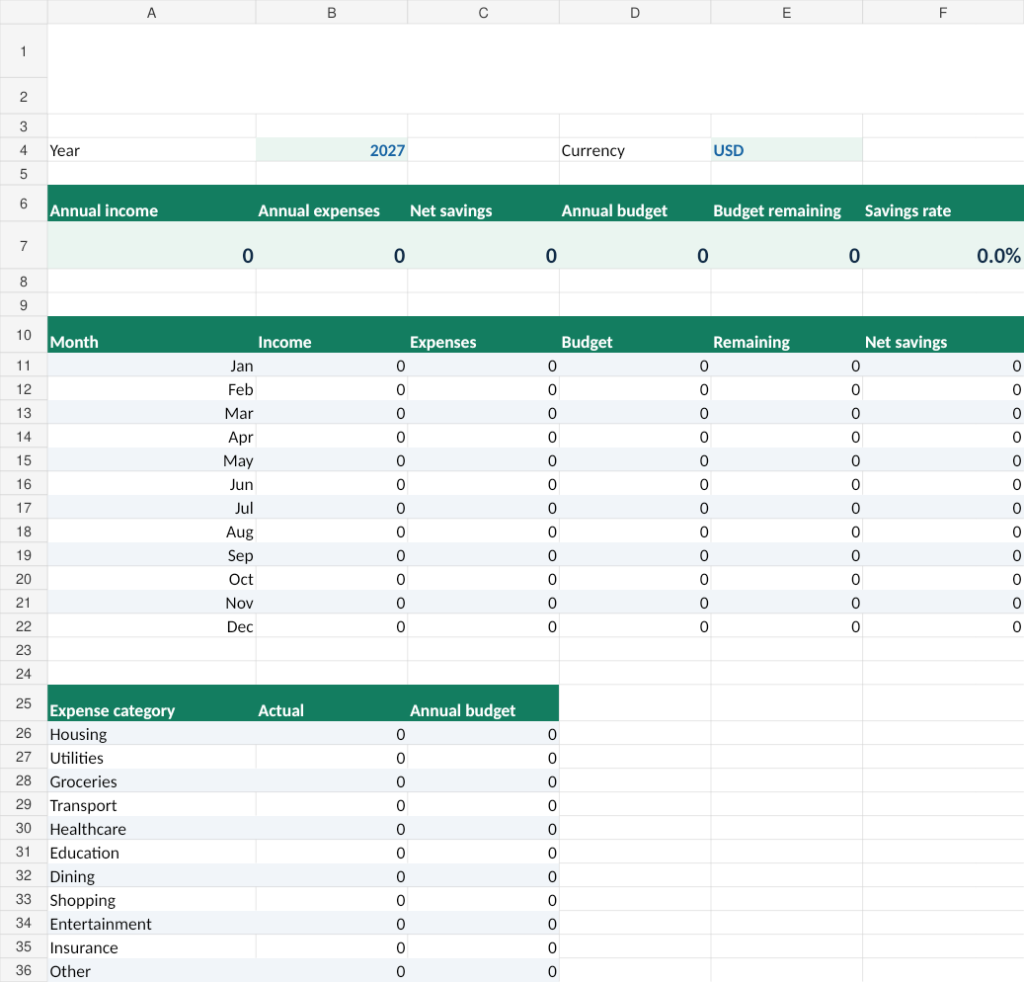
Four worksheets: Dashboard, Transactions, Budget and Instructions. The workbook has space for 500 transactions, 12 monthly budgets, 11 expense categories, category-wise spending totals, a savings rate and two dashboard charts.
How to use the Excel expense tracker
First select the year and currency label on the Dashboard. Enter your planned expenses for each month in the Budget worksheet. In Transactions, enter the date, choose Income or Expense, choose a matching category and enter a positive amount. The dashboard automatically summarizes transactions in the selected year.
Understand your monthly budget and savings
Net savings are income minus expenses. Budget remaining is the planned expense budget minus actual expenses. A negative remaining amount means spending has exceeded the budget. The savings rate is net savings divided by income when income is nonzero.
Customize the tracker
The default year is 2027 and the currency label is USD; both can be changed. The currency label does not convert amounts. Use a single currency throughout, and save a separate copy per year to preserve the budget history. The template starts with no sample transactions.
More free Excel resources
Browse our Free Tools & Downloads, including the Free Excel Invoice Template and 2027 Excel Calendar.