If your HP printer is offline, turn it on, clear any device errors and check that the computer can communicate with it. Open the HP app and run Diagnose & Fix if supported. In Windows 11, inspect the selected printer queue, cancel failed jobs when appropriate and verify the connection. On a Mac, check the printer in Print Center. If the printer is connected but the old queue still reports Offline, verify its current network address and add a working queue.
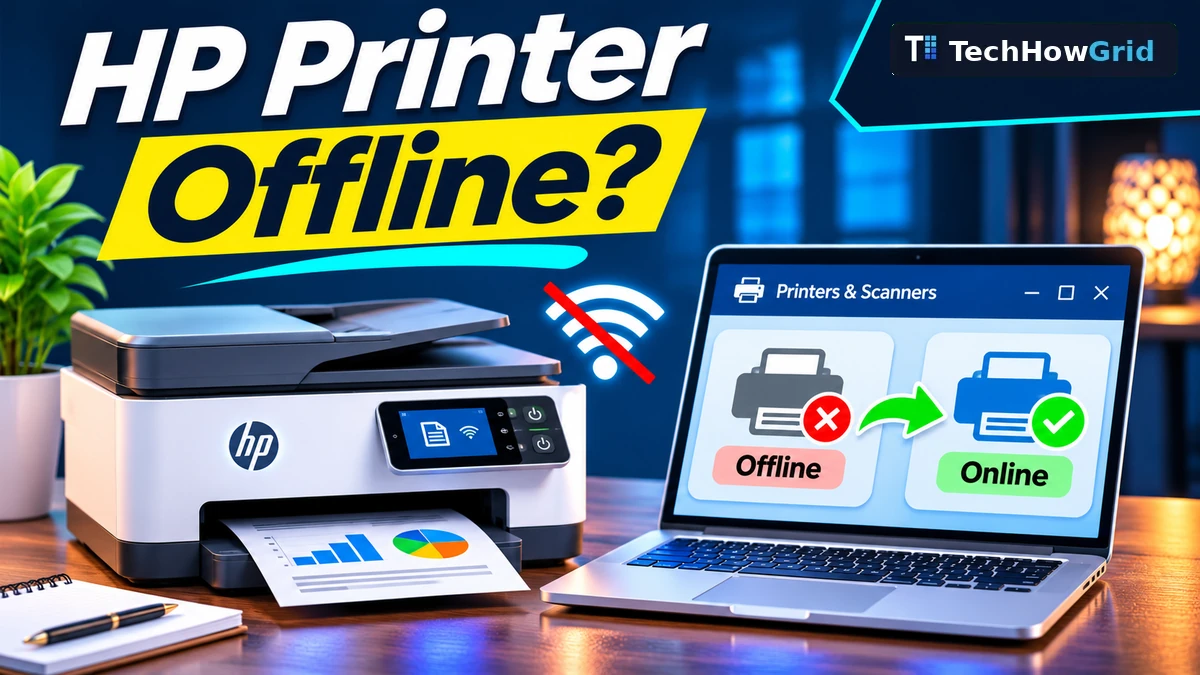
An offline status does not automatically mean that your HP printer has failed. A printer can be ready to print but unreachable from one computer because its network address changed, the wrong queue was selected or printing was paused. This guide focuses on getting an existing printer back online, rather than setting up Wi-Fi for the first time. The featured illustration is conceptual, not a screenshot of an actual device.
In this guide
- Quick diagnosis
- 1. Check the printer and restart it
- 2. Verify the connection
- 3. Use HP app Diagnose & Fix
- 4. Fix the Windows print queue
- 5. Restart the print spooler
- 6. Check the printer’s IP address
- 7. Re-add the printer or update its driver
- 8. Fix an offline HP printer on Mac
- Prevent recurring offline problems
- Practical example
- Frequently asked questions
- Related guides
HP printer offline: quick diagnosis
| What you observe | Where to investigate |
|---|---|
| Printer screen shows a paper or supply error | Resolve the device error first. |
| Printer is ready but only one computer says Offline | Selected print queue, driver or computer connection. |
| Every device has lost the printer | Printer power, local network or shared print server. |
| Offline after replacing a router | Current printer network address and saved Wi-Fi settings. |
| Jobs remain stuck despite an online status | Print queue or operating system print service. |
| HP app says unavailable but local printing works | App discovery, account or app-specific connection. |
Before submitting more print jobs, check whether earlier documents are already waiting. When the connection returns, those jobs may print automatically. This is particularly important for confidential invoices, forms and documents sent to a shared office printer. Start with a single harmless test page rather than repeatedly printing the original file.
1. Check the HP printer’s status and restart it
Go to the actual printer and check its power and display. If the machine is sleeping, wake it using the documented control. Make sure it has paper, its covers are closed and it is not reporting a jam or exhausted supply. A computer-side diagnostic cannot remove a physical obstruction.
- Read the printer’s screen or warning indicators.
- Resolve any displayed error according to the exact model’s manual.
- Turn the printer off normally and turn it on again after it has shut down.
- Wait for the printer to reach its ready state.
- Try a built-in printer report or a short test print.
If the printer can generate an internal report, you have evidence that its printing mechanism works for that test. Continue to connection and queue checks. If it cannot produce a report and displays a hardware error, consult HP support before reinstalling software. See HP’s printing troubleshooting guidance for further model-specific steps.
2. Verify the USB, Wi-Fi or Ethernet connection
Wi-Fi connection
Check that the printer and computer are on networks that permit communication with one another. A guest network can prevent local printing even though both devices have internet access. A computer using Ethernet can also print to a wireless printer when the router and network policy permit it.
For a printer that has not joined the router at all, use our HP printer not connecting to Wi-Fi guide. If the printer is already connected, do not repeatedly reset its wireless configuration. Print a network configuration report if supported and note its current address.
USB or Ethernet connection
For USB printing, check the cable and try a direct compatible computer port instead of an unreliable hub. For Ethernet, verify the cable, link status and permitted network connection. Avoid restarting shared network equipment without authorization. If a restart is appropriate, allow the network to become available before testing the printer again.
Local printing and internet-based features are different. A printer may work on the local network while a cloud feature is unavailable. Conversely, internet access alone does not prove the computer can reach the printer.
3. Run Diagnose & Fix in the HP app
HP offers a current troubleshooting utility within the HP app for supported Windows and macOS installations. It can examine certain print and connection problems and may repair them without requiring a manual driver reinstall.
- Open the official HP app and select the affected printer.
- Find the Diagnose & Fix feature in the app’s printer or diagnostics controls.
- Start the diagnostic and follow the instructions it presents.
- Review its findings and send one test print.
The location of this tool can differ between app versions. Consult HP’s Diagnose & Fix documentation if you cannot find it. HP’s offline printer guide also describes removing and adding a printer again in the app when discovery is the problem.
Important: HP retired Print and Scan Doctor on May 27, 2025. It is no longer maintained and HP recommends removing it because of potential security risks. Follow the official retirement and removal guidance rather than downloading a copy from an unofficial website. Diagnose & Fix is the supported replacement.
4. Fix an HP printer showing Offline in Windows 11
Windows may have several saved entries for the same printer. For instance, an old USB queue can remain installed after a switch to wireless printing. Make sure the document is being sent to the queue associated with the current connection.
- Open Settings, then Bluetooth & devices, then Printers & scanners.
- Select the correct HP printer and open its print queue.
- Check whether printing is paused and resume it when appropriate.
- If your queue exposes a Use Printer Offline option, ensure it is not intentionally enabled.
- Cancel a failed job only if you are authorized to remove it, then print a fresh test page.
Some older Windows instructions use a separate classic printer menu. The exact options differ by Windows release and queue interface. If the old offline toggle is not present, use the available modern queue controls and the Windows printer troubleshooter instead. In Windows 11, the Get Help app provides an automated troubleshooting route; see Microsoft’s offline printer instructions.
A default printer setting changes which printer is selected automatically; it does not itself repair connectivity. Choose the working printer in the application’s Print dialog before sending the test.
5. Restart the Windows Print Spooler if jobs remain stuck
The Print Spooler manages print jobs on Windows. If the queue does not respond despite a working connection, restarting the service may help. This is a computer-side step, not a printer hardware reset.
- Save your work and check for pending print jobs.
- Search for Services in Windows and open it with the necessary permissions.
- Locate Print Spooler and use Restart if available.
- Reopen the print queue and check its status.
- Print one test page after the service is running again.
Restarting a shared print service may affect other people. On an office computer or print server, ask the administrator before changing services or deleting spool files. For additional queue instructions, read our guide to clearing the Windows print queue and Microsoft’s spooler troubleshooting resource.
6. Check the current HP printer IP address
A network printer can receive a different address from the router after a restart or network replacement. If the Windows queue was created with a manually specified address, it may continue sending jobs to the old destination.
| Illustrative setting | Example |
|---|---|
| Previous printer address | 192.168.1.45 |
| Current address on the printer report | 192.168.1.72 |
| Old Windows queue | Configured for 192.168.1.45 |
| Possible resolution | Repair or add a queue for the current printer. |
These private-network addresses are examples, not values to enter on your own printer. Use the actual address printed by your device. Our printer IP address guide explains how to find it.
For a compatible printer on an authorized network, you may be able to open its local embedded web interface to verify that the computer can reach the device. A failed browser connection is not conclusive because web management may be disabled. Check the correct queue and supported printing protocol rather than guessing network settings.
For recurring address changes, a router-side DHCP reservation may help keep the printer’s address consistent. Ask the network administrator before making such changes. Do not choose an arbitrary fixed IP, which can conflict with another device.
7. Re-add the printer or update its supported driver
If the printer is reachable but the existing queue remains offline, add the correct device before removing the old entry. On Windows 11, use Add device in Printers & scanners. If automatic discovery does not succeed, the manual addition option may be suitable for a supported network printer.
Choose the recommended driver for your model and operating system from official sources. HP’s Windows built-in driver guide explains supported setup methods. Check whether special functions such as scanning, trays or duplex printing require additional software.
Test the newly added queue before removing an obsolete one. This preserves a fallback and helps prevent disruption to users of a shared printer. Avoid third-party driver update utilities and do not disable security controls to make a driver install.
8. Bring an offline HP printer back online on Mac
- Open Print Center or the affected printer’s queue through System Settings and Printers & Scanners.
- Resume paused printing if applicable and review failed jobs.
- Check that the selected HP printer is the correct device and that it is reachable.
- If necessary, add a compatible printer again using AirPrint or the supported HP software.
- Send a test page before removing an obsolete printer entry.
Apple’s Mac printing troubleshooting guide describes how to manage paused and failed print jobs. Resetting the entire printing system is more disruptive than adding one printer again, because it removes configured printers. Reserve that action for justified troubleshooting and document the existing configuration first.
How to prevent an HP printer from repeatedly going offline
- Keep the printer within reliable network coverage and use compatible wireless security.
- Maintain supported firmware and software through official update channels.
- Avoid retaining multiple obsolete queues for the same printer.
- Ask your network administrator about consistent addressing if address changes cause recurring failures.
- Record the printer model, connection type and working queue configuration.
Some printers enter a power-saving state when idle. Sleep should not automatically be treated as a fault. If the machine consistently fails to wake for legitimate print jobs, examine its documented power settings and connection behavior. Do not disable all energy-saving features without evidence that they contribute to the issue.
Practical example: HP printer offline after changing a router
Imagine that an office HP printer still produces its own configuration report, and a phone can print to it, but one Windows laptop shows Offline. The laptop’s saved queue points to a previous network address. First, confirm the printer’s current address and check that the laptop is on an authorized network. Use Diagnose & Fix or add the currently reachable printer. Then submit one test page. If it prints, remove the obsolete personal queue only after checking for pending documents.
This fictional example shows how to distinguish a stale computer configuration from a printer that has failed to connect to Wi-Fi. It is not a claim of hands-on testing of a particular HP model.
Frequently asked questions
Why does my HP printer say offline when it is turned on?
The computer may be unable to communicate with the printer, may be using an old queue or may have paused printing. Check device status, connection and the selected queue separately.
How do I change my HP printer from offline to online?
Restore communication with the correct printer, address any device errors and resume its working queue. The HP app’s diagnostic feature may help. Changing a displayed status alone cannot repair a broken connection.
Why is my HP printer offline on my laptop but works on my phone?
A working phone print suggests that the printer is reachable in at least one workflow. Check the laptop’s network access, printer queue, driver and address rather than resetting the whole printer.
Should I download HP Print and Scan Doctor?
No. HP retired that utility in May 2025 and recommends using the HP app’s Diagnose & Fix instead.
Will reinstalling the printer delete documents from my computer?
Removing a printer queue does not normally delete the original files, but it can remove or disrupt pending print jobs and printer settings. Check those jobs and preserve any required configuration first.
Related TechHowGrid printer guides
- Printer offline in Windows 11
- Connect a printer to Wi-Fi
- Fix Brother printer printing problems
- Scan from printer to computer
Start with the printer’s actual condition, verify communication and then repair the affected software queue. Use current supported HP tools instead of obsolete downloads, and verify the repair with a single test page.