
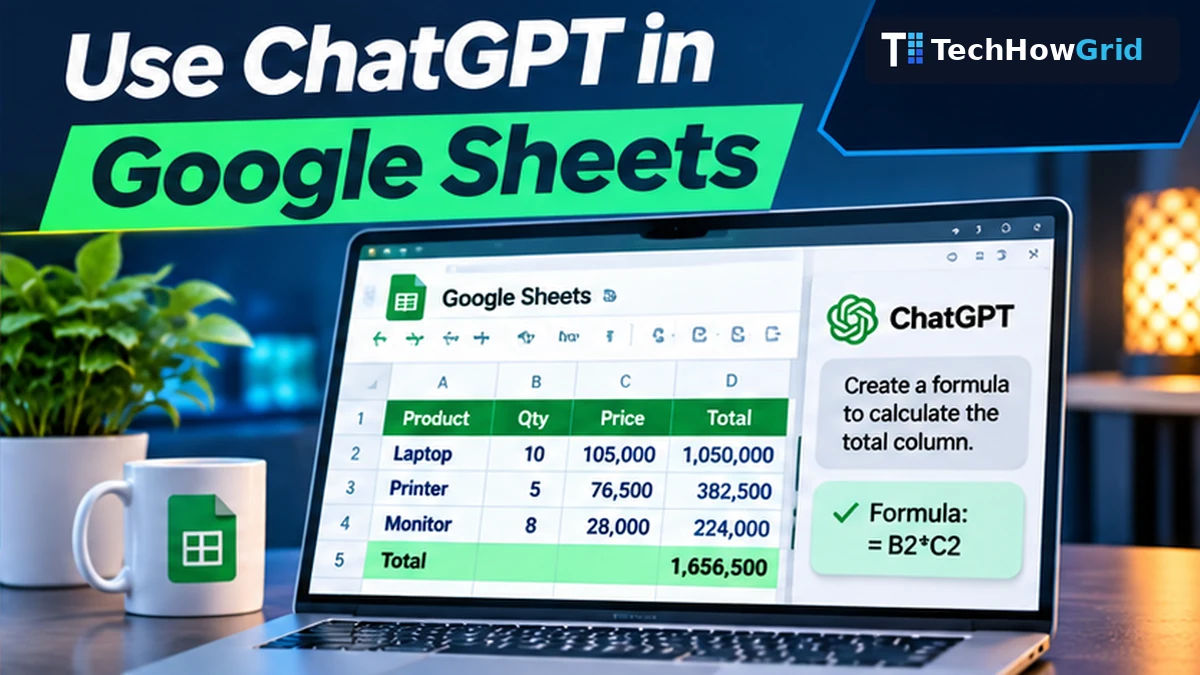
You can use ChatGPT in Google Sheets through OpenAI’s official spreadsheet add-on, which places an assistant inside the spreadsheet. You can also use ChatGPT separately to write formulas, troubleshoot errors or analyze an exported copy of your data. The right method depends on your account permissions, the sensitivity of the information and whether you want direct spreadsheet edits.
Start with a small practice sheet or a duplicate of an existing workbook. The featured image is an illustration of a spreadsheet workflow, not an actual product screenshot.
In this guide
- Choose the right way to use ChatGPT
- 1. Install ChatGPT for Google Sheets
- 2. Create and explain spreadsheet formulas
- 3. Clean and summarize spreadsheet data
- 4. Use ChatGPT without installing an add-on
- Five practical prompts for Google Sheets
- Protect your data and verify calculations
- Frequently asked questions
- Related guides
Choose the right way to use ChatGPT
| Method | Best for | What to check |
|---|---|---|
| Official ChatGPT add-on | Working directly in Google Sheets | Account permissions and usage limits |
| ChatGPT in your browser | Writing formulas and analyzing a copy | File access and manual transfer of results |
| Gemini in Sheets | Google’s own spreadsheet assistant | Eligible Google account or subscription |
| Third-party AI add-ons | Specialized workflows | Publisher, permissions, pricing and data policies |
Google’s Gemini in Sheets is a separate product. Access to ChatGPT does not automatically grant access to Gemini, and a third-party extension with GPT in its name is not necessarily operated by OpenAI.
1. Install ChatGPT for Google Sheets
- Visit Google Workspace Marketplace using the installation link in the official ChatGPT spreadsheet guide. Check the publisher before installing.
- Review the requested Google account permissions and complete installation if authorized.
- Open Google Sheets and choose ChatGPT from the Extensions menu.
- Sign in to your ChatGPT account and select the appropriate workspace, if prompted.
- Open a practice sheet and ask for a small change, such as adding a total column.
OpenAI lists access across its consumer and organizational plans, with different usage allowances. Workspace administrators may restrict installation or access. If an extension is missing, check the selected Google account and ask your administrator rather than attempting to bypass the restrictions. Google explains general add-on management in its add-on documentation.
2. Create and explain spreadsheet formulas
Suppose a practice worksheet contains Product in column A, Quantity in B, Unit Price in C and Total in D. Headers occupy row 1 and three sample products occupy rows 2 through 4. Ask ChatGPT to create a formula for D2 that multiplies quantity by unit price, then fill it down to D4. Specify that the original input cells must remain unchanged.
=B2*C2For a grand total in D5, use:
=SUM(D2:D4)| Product | Quantity | Unit price | Total |
|---|---|---|---|
| Item A | 3 | 20 | 60 |
| Item B | 2 | 45 | 90 |
| Item C | 5 | 10 | 50 |
| Grand total | 200 |
This small example lets you independently check the arithmetic. A useful follow-up is to ask why D5 should sum only D2:D4, rather than the entire D column. Summing a range that contains the total cell can create a circular dependency.
For a separate invoice tracker with invoice amount in D and payment status in E, you can request the total of rows explicitly marked Pending:
=SUMIF(E2:E100,"Pending",D2:D100)Check whether your actual status labels match the criterion and whether the range covers all relevant records. Depending on spreadsheet locale, formula argument separators may be semicolons rather than commas. Review the Google Sheets function list when you need to confirm function syntax.
3. Clean and summarize spreadsheet data
AI can help identify inconsistent categories, unnecessary spaces, duplicate records and possible formula errors. Begin by requesting a review rather than immediate deletion. A duplicate customer name, for example, does not prove that two invoices represent the same transaction.
- Create a copy of the original spreadsheet or retain a clearly labeled source tab.
- Ask for a list of suspected issues and the exact ranges involved.
- Define what constitutes a duplicate, such as a matching invoice ID rather than a matching name.
- Request changes only on the designated working tab.
- Compare record counts, sample rows and totals before accepting the cleaned data.
For reporting, describe the source columns, grouping logic and output location. A monthly revenue summary should distinguish paid invoices from unpaid invoices if that distinction matters. Ask for a clear definition of each metric before generating the table.
4. Use ChatGPT without installing an add-on
If installation is unavailable, open ChatGPT in a browser and describe your sheet layout. Provide a few fictional or appropriately redacted sample rows and specify the formula you need. Paste the proposed formula into a spare cell or test copy, then review its results.
For a larger analysis, you can export an authorized spreadsheet as XLSX or CSV and attach it when uploads are supported. CSV is useful for a single plain-data table, but it does not preserve multiple tabs, workbook formulas or rich formatting. An XLSX export can retain more structure, although some Google-specific features may not transfer.
Where available, the Google Drive connection in ChatGPT provides another way to work with permitted files. See OpenAI’s Google Drive setup guide. Verify whether the workflow can edit your original sheet or only produce a separate output before relying on it.
Five practical prompts for Google Sheets
Adapt these sample prompts to the actual structure of your sheet. Each specifies the source, desired output and a restriction on unintended changes.
- Formula troubleshooting: Explain the error in F12 using its referenced cells. Propose a fix without changing the sheet.
- Inventory: Create a low-stock flag in column E based on the quantity in C and reorder level in D. Leave blank product rows empty.
- Data cleaning: Flag repeated invoice IDs on a new tab. Do not delete any source rows.
- Monthly report: Summarize the Transactions tab by month and payment status. Show the formula or grouping method for each total.
- Workbook review: Identify totals that use inconsistent ranges, explain the possible impact and wait for approval before editing.
For complex multi-tab changes, ask for a list of intended tabs, ranges and assumptions first. This is especially useful if the workbook is shared with colleagues.
Protect your data and verify calculations
AI-generated formulas and summaries can be incorrect even when they appear plausible. Check range boundaries, hidden or filtered rows, blank cells, currency formats, negative amounts and dates. Reconcile important totals against source documents, and review changed cells before sharing a report.
Only grant access to spreadsheets you are authorized to process. Avoid sharing credentials, personal identifiers or unnecessary confidential records. Review the applicable Google and ChatGPT account data controls and organizational policies. OpenAI’s spreadsheet documentation also describes separate conversation history and limitations on memory access in this integration.
For important financial, tax or legal calculations, use an appropriate qualified reviewer. No AI assistant can guarantee the accuracy or suitability of a spreadsheet for official reporting.
Frequently asked questions
Is ChatGPT for Google Sheets an official add-on?
Yes. OpenAI provides an official installation link from its help center to Google Workspace Marketplace. Verify the publisher and do not confuse it with similarly named third-party extensions.
Can I use ChatGPT in Sheets for free?
OpenAI lists access for Free accounts with limited usage. Check your account’s current allowances and any organizational restrictions.
Do I need an API key?
The official add-on uses ChatGPT account sign-in. Third-party tools may have different authentication or billing requirements.
Does Google Sheets have a built-in GPT formula?
Do not assume that a formula such as =GPT() exists in every sheet. Custom functions depend on the specific extension or script installed. Standard formulas like SUMIF work independently of an AI add-on.
Can ChatGPT fix every spreadsheet error automatically?
No. Missing source records, ambiguous business rules and incorrect assumptions require human review. Ask for an explanation of each proposed fix and test it against known cases.
Related guides
Explore more AI and productivity tutorials on TechHowGrid.